


Hey there, tech enthusiasts! As a Dell RAM supplier, I've seen firsthand how adjusting RAM timings can significantly boost your computer's performance. Today, I'm gonna walk you through the process of adjusting RAM timings in a Dell computer. Whether you're a gamer looking for that extra edge or a professional needing to handle resource-intensive tasks, understanding and tweaking your RAM timings can make a real difference.
What Are RAM Timings?
Before we dive into the how-to, let's quickly cover what RAM timings are. RAM timings are a set of parameters that determine how quickly your RAM can access and transfer data. They're measured in clock cycles and are represented by a series of numbers, like 16-16-16-36. Each number corresponds to a different aspect of the RAM's operation, such as how long it takes to activate a row of memory cells or to precharge them.
The lower the numbers, the faster the RAM can perform these operations, which generally means better performance. However, not all RAM modules can handle extremely low timings, and adjusting them incorrectly can lead to stability issues. So, it's important to proceed with caution.
Checking Your Current RAM Timings
The first step in adjusting your RAM timings is to find out what they currently are. You can do this using software tools like CPU-Z or HWiNFO. These programs will give you detailed information about your system's hardware, including your RAM timings.
Once you've installed and opened the software, navigate to the "Memory" or "SPD" tab. Here, you'll find the current timings of your RAM. Make a note of these numbers, as you'll need them later.
Entering the BIOS/UEFI
To adjust your RAM timings, you'll need to enter your computer's BIOS or UEFI settings. The process for doing this varies depending on your Dell model, but generally, you'll need to press a specific key during startup. Common keys include F2, F10, or Del.
When you see the Dell logo appear during startup, start pressing the appropriate key repeatedly until you enter the BIOS/UEFI menu. Once you're in, look for the "Advanced" or "Overclocking" section. This is where you'll find the settings for your RAM.
Adjusting the RAM Timings
In the BIOS/UEFI, you'll see a variety of options related to your RAM. Look for settings labeled something like "DRAM Timing Configuration" or "Memory Timings." Here, you'll be able to adjust the individual timings.
Start by changing one timing at a time, and make small adjustments. For example, if your current CAS latency (the first number in the timing sequence) is 16, you could try changing it to 15. After making a change, save the settings and restart your computer.
Test your system to see if it's stable. You can do this by running a stress test, such as Prime95 or MemTest86. If your computer crashes or experiences errors, you've likely set the timing too aggressively. In this case, go back into the BIOS/UEFI and revert the change.
Finding the Sweet Spot
Adjusting RAM timings is a process of trial and error. You'll need to experiment with different settings to find the optimal balance between performance and stability. Keep in mind that not all RAM modules can achieve the same timings, even if they have the same speed rating.
As you make adjustments, pay attention to how your system performs. You may notice improvements in tasks like gaming, video editing, or multitasking. However, if you're not seeing any significant changes, it may be that your RAM is already running at its optimal timings.
Compatibility with Dell RAM Modules
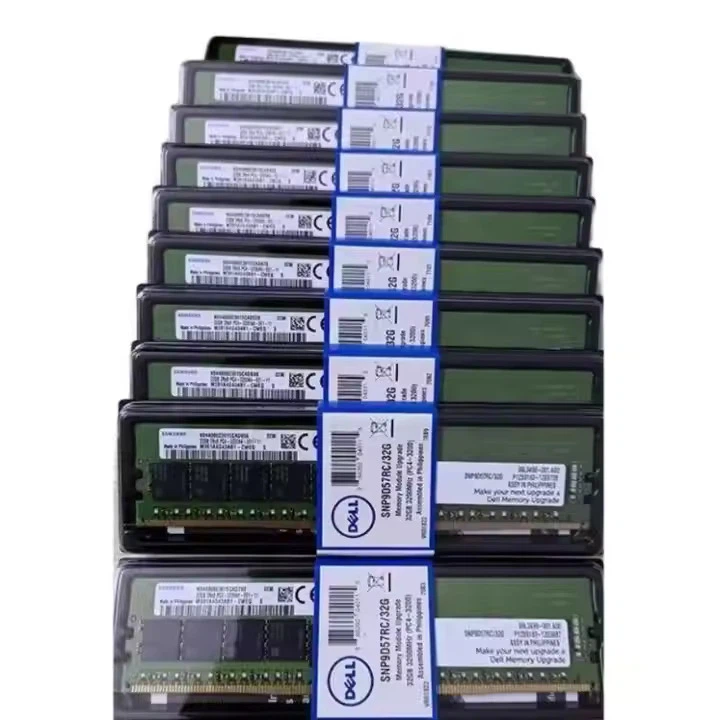
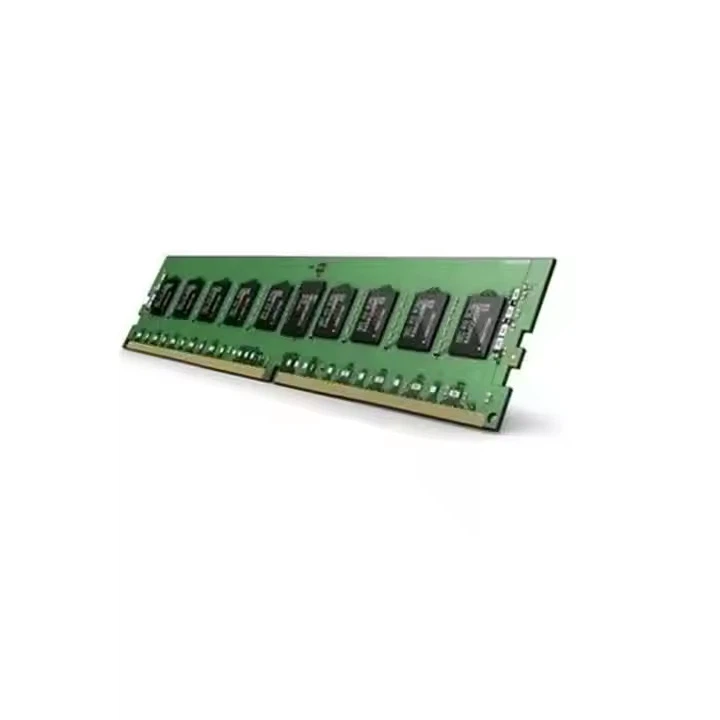
When adjusting RAM timings, it's important to use compatible RAM modules. As a Dell RAM supplier, I can recommend some great options for your Dell computer. Check out our Dell RAM 8GB, Dell 16G RAM, and Dell 32G RAM products. These modules are designed to work seamlessly with Dell systems and offer excellent performance.
Troubleshooting
If you run into any issues while adjusting your RAM timings, here are some common solutions:
- Stability issues: If your computer crashes or freezes after adjusting the timings, try increasing the timings slightly. You may also need to increase the voltage to your RAM to improve stability.
- Boot problems: If your computer won't boot after making changes to the RAM timings, you can usually reset the BIOS/UEFI settings to their default values. Look for an option like "Load Optimized Defaults" or "Restore Defaults" in the BIOS/UEFI menu.
- Incompatible RAM: If you're using non-Dell RAM or RAM that isn't compatible with your system, you may experience issues. Make sure you're using RAM that is specifically designed for your Dell model.
Conclusion
Adjusting your RAM timings can be a great way to improve your Dell computer's performance, but it's not without its risks. By following the steps outlined in this guide and proceeding with caution, you can find the optimal timings for your system.
If you're interested in purchasing high-quality Dell RAM for your computer, we've got you covered. Our Dell RAM 8GB, Dell 16G RAM, and Dell 32G RAM options are designed to provide excellent performance and reliability.
If you have any questions or would like to discuss your RAM needs further, don't hesitate to reach out. We're here to help you get the most out of your Dell computer.
References
- CPU-Z: https://www.cpuid.com/softwares/cpu-z.html
- HWiNFO: https://www.hwinfo.com/
- Prime95: https://www.mersenne.org/download/
- MemTest86: https://www.memtest86.com/


