Configuring a static route on a Cisco switch is a fundamental networking skill that can enhance the efficiency and reliability of your network. As a trusted Cisco switch supplier, we understand the importance of providing clear guidance on this crucial process. In this blog post, we'll walk you through the steps to configure a static route on a Cisco switch, ensuring that you can optimize your network's performance.
Understanding Static Routes
Before diving into the configuration process, it's essential to understand what static routes are and why they're used. A static route is a manually configured route in a router or switch's routing table. Unlike dynamic routes, which are automatically learned and updated by routing protocols, static routes are fixed and do not change unless manually modified. Static routes are often used in small networks or for specific network segments where dynamic routing is not necessary or desirable.
Prerequisites
Before configuring a static route on your Cisco switch, you'll need the following:
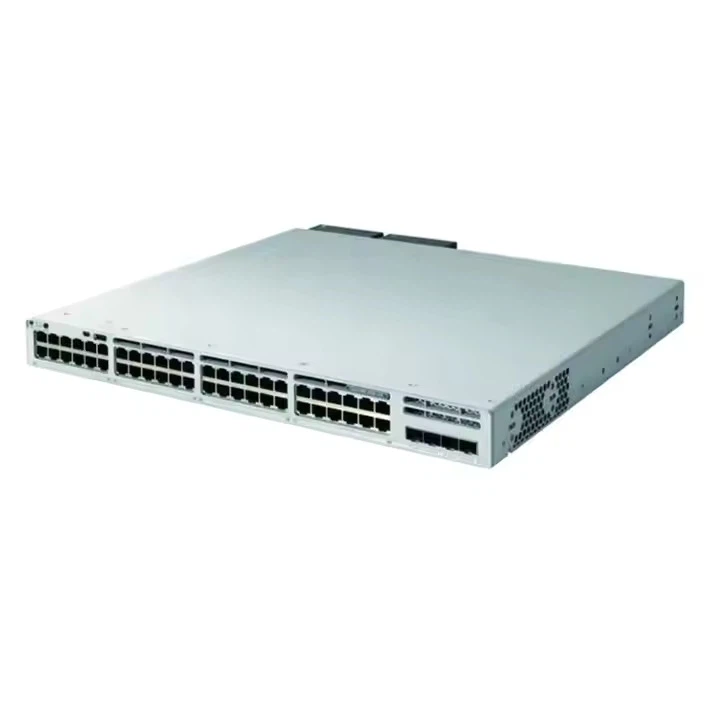
- A Cisco switch, such as the Switch Cisco Catalyst 9300, Switch Cisco C9200, or Switch Cisco C1000 24t 4g L.
- Access to the switch's command-line interface (CLI) using a console cable or Telnet/SSH.
- Basic knowledge of IP addressing and subnetting.
Step-by-Step Guide to Configuring a Static Route
The following steps outline the process of configuring a static route on a Cisco switch:
Step 1: Access the Switch's CLI
To begin, you'll need to access the switch's CLI. You can do this by connecting to the switch using a console cable and a terminal emulator, such as PuTTY, or by using Telnet or SSH if remote access is enabled.
Switch> enable
Switch# configure terminal
The enable command allows you to enter privileged EXEC mode, which provides full access to the switch's configuration commands. The configure terminal command then allows you to enter global configuration mode, where you can make changes to the switch's overall configuration.
Step 2: Determine the Destination Network and Next-Hop Address
Before configuring a static route, you'll need to determine the destination network and the next-hop address. The destination network is the network to which you want to send traffic, and the next-hop address is the IP address of the next device (usually a router) that will forward the traffic towards the destination network.
For example, let's say you want to configure a static route to a destination network with the IP address 192.168.2.0 and a subnet mask of 255.255.255.0. The next-hop address is 192.168.1.1.
Step 3: Configure the Static Route
Once you have determined the destination network and the next-hop address, you can configure the static route using the ip route command. The syntax of the ip route command is as follows:
ip route <destination-network> <subnet-mask> <next-hop-address>
Using the example from Step 2, you would enter the following command in global configuration mode:
Switch(config)# ip route 192.168.2.0 255.255.255.0 192.168.1.1
This command tells the switch to forward all traffic destined for the 192.168.2.0/24 network to the next-hop address 192.168.1.1.
Step 4: Verify the Static Route Configuration
After configuring the static route, it's important to verify that the configuration was successful. You can do this by using the show ip route command in privileged EXEC mode:
Switch# show ip route
This command displays the switch's routing table, which includes all the routes that the switch knows about. Look for the static route you just configured in the routing table. If the route is listed correctly, the configuration was successful.
Advanced Static Route Configuration
In addition to the basic static route configuration described above, there are several advanced static route configuration options that you can use to optimize your network's performance.
Default Static Route
A default static route is a special type of static route that is used to forward all traffic that does not match any other routes in the routing table. You can configure a default static route using the ip route command with a destination network of 0.0.0.0 and a subnet mask of 0.0.0.0.
Switch(config)# ip route 0.0.0.0 0.0.0.0 <next-hop-address>
This command tells the switch to forward all traffic that does not match any other routes in the routing table to the next-hop address specified.

Floating Static Routes
Floating static routes are static routes that have a higher administrative distance than dynamic routes. This means that floating static routes are only used if the dynamic routes are unavailable. You can configure a floating static route by specifying a higher administrative distance when configuring the static route.
Switch(config)# ip route <destination-network> <subnet-mask> <next-hop-address> <administrative-distance>
For example, if you want to configure a floating static route with an administrative distance of 150, you would enter the following command:
Switch(config)# ip route 192.168.2.0 255.255.255.0 192.168.1.1 150
Troubleshooting Static Route Configuration
If you encounter problems with your static route configuration, there are several steps you can take to troubleshoot the issue.
Check the Routing Table
The first step in troubleshooting a static route configuration is to check the switch's routing table using the show ip route command. Make sure that the static route is listed correctly and that the next-hop address is reachable.
Check the Next-Hop Address
If the next-hop address is unreachable, there may be a problem with the network connectivity between the switch and the next-hop device. You can use the ping command to test the connectivity to the next-hop address.
Switch# ping <next-hop-address>
If the ping fails, check the network cables, interfaces, and any intermediate devices to ensure that they are functioning correctly.
Check the Administrative Distance
If you are using floating static routes, make sure that the administrative distance is set correctly. If the administrative distance is too low, the floating static route may be used instead of the dynamic routes, which can cause routing issues.
Conclusion
Configuring a static route on a Cisco switch is a straightforward process that can significantly enhance the efficiency and reliability of your network. By following the steps outlined in this blog post, you can easily configure static routes on your Cisco switch and optimize your network's performance.
As a leading Cisco switch supplier, we offer a wide range of high-quality Cisco switches, including the Switch Cisco Catalyst 9300, Switch Cisco C9200, and Switch Cisco C1000 24t 4g L. If you have any questions or need assistance with your network configuration, please don't hesitate to contact us. We're here to help you make the most of your Cisco switches and ensure that your network runs smoothly.
References
- Cisco Systems, Inc. "Configuring Static Routes." Cisco Documentation.
- Andrew S. Tanenbaum. "Computer Networks." Prentice Hall, 2011.