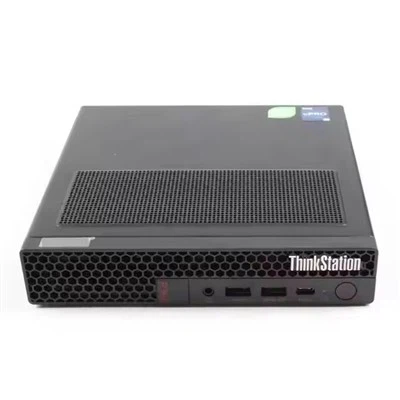
As a trusted supplier of Lenovo Workstations, I've witnessed firsthand how these powerful machines can transform a home workspace. Setting up a home network with Lenovo Workstations is a strategic move that enhances productivity, collaboration, and overall efficiency. In this blog, I'll guide you through the process of creating a seamless home network using Lenovo's top - of - the - line workstations.
Understanding Your Requirements
Before diving into the setup process, it's essential to understand your specific needs. Consider the number of workstations you plan to connect, the types of applications you'll be running, and the level of security required. For instance, if you're a graphic designer, you'll need high - speed data transfer for large file sharing, while a financial analyst might prioritize data security.
Lenovo offers a wide range of workstations to suit different needs. The Lenovo Tiny P360 is a compact yet powerful option, ideal for space - constrained home offices. It provides excellent performance for everyday tasks such as web browsing, document editing, and video conferencing. On the other hand, the Lenovo P350 Workstation is designed for more demanding workloads, such as 3D modeling, animation, and data analysis. With its high - end processors and dedicated graphics cards, it can handle complex tasks with ease. If you need a robust tower workstation, the Thinkstation P340 Tower is a great choice. It offers expandability and reliability, making it suitable for heavy - duty professional work.


Planning Your Home Network
Once you've determined your requirements and selected the appropriate Lenovo Workstations, it's time to plan your home network. Here are the key steps:
1. Choose the Right Network Type
There are two main types of home networks: wired and wireless. Wired networks offer faster and more stable connections, making them ideal for data - intensive tasks. Wireless networks, on the other hand, provide greater flexibility and mobility. For most home offices, a combination of both is recommended. Use wired connections for workstations that require high - speed data transfer, such as those used for video editing or large - scale data processing, and wireless connections for devices like laptops and tablets.
2. Select a Router
A router is the central hub of your home network. It connects your devices to the internet and allows them to communicate with each other. When choosing a router, consider factors such as speed, range, and security features. Look for a router that supports the latest Wi - Fi standards, such as Wi - Fi 6, for faster and more reliable wireless connections. Additionally, ensure that the router has enough Ethernet ports to connect your wired devices.
3. Determine the Placement of Your Devices
The placement of your workstations, router, and other network devices can significantly impact network performance. Place your router in a central location, away from obstacles and interference sources such as microwaves and cordless phones. Keep your workstations within the range of the router's signal for optimal wireless connectivity. If you're using wired connections, ensure that the Ethernet cables are long enough to reach your devices without being stretched or bent.
Setting Up the Network
Now that you've planned your home network, it's time to set it up. Here's a step - by - step guide:
1. Connect Your Router to the Internet
First, connect your router to your internet service provider's modem using an Ethernet cable. Follow the manufacturer's instructions to configure the router and establish an internet connection.
2. Connect Your Lenovo Workstations
If you're using a wired connection, connect each Lenovo Workstation to the router using an Ethernet cable. Plug one end of the cable into the Ethernet port on the workstation and the other end into an available Ethernet port on the router.
For wireless connections, turn on the Wi - Fi on your Lenovo Workstation and search for available networks. Select your home network and enter the network password to connect.
3. Configure Network Settings
Once your workstations are connected to the network, you may need to configure some network settings. For example, you can set up a static IP address for specific devices if required. You can also configure network sharing options to allow your workstations to share files and resources.
Ensuring Network Security
Security is a crucial aspect of any home network. Here are some tips to protect your Lenovo Workstations and network:
1. Use Strong Passwords
Set strong, unique passwords for your router, workstations, and any other network - connected devices. Avoid using common passwords such as "123456" or "password."
2. Enable Firewall Protection
Most Lenovo Workstations come with built - in firewall protection. Make sure the firewall is enabled and configured to block unauthorized access to your network.
3. Keep Your Software Up - to - Date
Regularly update the operating system, drivers, and applications on your Lenovo Workstations. Software updates often include security patches that can help protect your devices from the latest threats.
4. Use Antivirus Software
Install reliable antivirus software on your workstations and keep it up - to - date. Antivirus software can detect and remove malware, viruses, and other security threats.
Optimizing Network Performance
To ensure that your home network operates at its best, here are some performance - optimization tips:
1. Upgrade Your Internet Plan
If you're experiencing slow internet speeds, consider upgrading your internet plan to a higher bandwidth option. This can significantly improve the performance of your home network, especially if you have multiple devices connected simultaneously.
2. Limit the Number of Connected Devices
Each device connected to your network consumes bandwidth. To maintain optimal performance, limit the number of devices connected to your network at the same time.
3. Use Quality Ethernet Cables
If you're using wired connections, invest in high - quality Ethernet cables. Poor - quality cables can cause signal degradation and slow down your network.
Conclusion
Setting up a home network with Lenovo Workstations is a rewarding process that can enhance your productivity and create a more efficient home workspace. By understanding your requirements, planning your network carefully, setting it up correctly, ensuring security, and optimizing performance, you can create a reliable and high - performing home network.
If you're interested in purchasing Lenovo Workstations for your home network or have any questions about the setup process, I'd be more than happy to assist you. Contact me to start a conversation about your specific needs and how we can help you achieve your goals.
References
- Lenovo official product documentation
- Network security best practices guides
- Internet service provider support resources