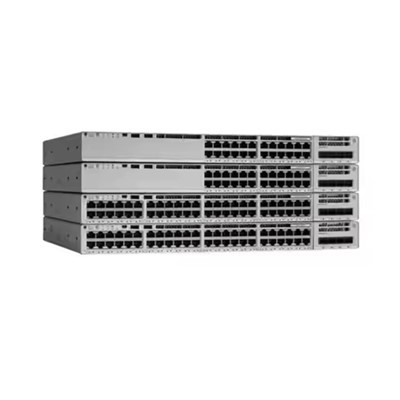


Hey there! As a Lenovo server supplier, I often get asked about how to apply security patches to Lenovo servers. It's a crucial task that can protect your data and keep your business running smoothly. In this blog post, I'll walk you through the process step by step.
Why Security Patches Are Important
First things first, let's talk about why applying security patches is so important. Security patches are updates released by Lenovo to fix vulnerabilities in their servers. These vulnerabilities can be exploited by hackers to gain unauthorized access to your system, steal sensitive data, or cause other types of damage. By applying security patches in a timely manner, you can significantly reduce the risk of a security breach.
Types of Lenovo Servers
Lenovo offers a wide range of servers to meet different business needs. Some of the popular models include the Lenovo SR650 V3 Rack Server, Lenovo Server SR590 V2, and Lenovo SR850 V3 2U Server. The process of applying security patches may vary slightly depending on the server model, but the general steps are the same.
Step 1: Check for Available Patches
The first step in applying security patches is to check for available updates. Lenovo provides a tool called Lenovo XClarity Controller (XCC) that allows you to manage and monitor your servers remotely. You can use XCC to check for available security patches for your server.
Here's how you can do it:
- Log in to the XCC web interface using your server's IP address and credentials.
- Navigate to the "Firmware" or "Updates" section.
- Click on the "Check for Updates" button. XCC will then scan for available security patches and display them on the screen.
Step 2: Review the Patches
Once you've identified the available security patches, it's important to review them carefully before applying them. Make sure you understand what each patch fixes and whether it's relevant to your server. Some patches may require a server reboot, so you'll need to plan accordingly.


Lenovo provides release notes for each security patch that include detailed information about the fixes and any known issues. Read these release notes carefully to ensure that the patches are compatible with your server and won't cause any problems.
Step 3: Backup Your Data
Before applying any security patches, it's always a good idea to backup your data. This will ensure that you have a copy of your important files and information in case something goes wrong during the patching process.
You can use a variety of backup methods, such as external hard drives, cloud storage, or backup software. Make sure you test your backup to ensure that it's working properly.
Step 4: Apply the Patches
Once you've reviewed the patches and backed up your data, it's time to apply the patches. Here's how you can do it:
- In the XCC web interface, select the security patches that you want to apply.
- Click on the "Install" or "Apply" button. XCC will then download the patches and install them on your server.
- Depending on the size and complexity of the patches, the installation process may take some time. Make sure you don't interrupt the process or turn off your server during the installation.
- Once the patches are installed, you may need to reboot your server. Follow the instructions provided by XCC to complete the reboot process.
Step 5: Verify the Installation
After the patches are installed and your server has rebooted, it's important to verify that the installation was successful. You can do this by checking the XCC web interface or using other monitoring tools.
Make sure that your server is running smoothly and that there are no error messages or warnings. You can also run a security scan to check for any remaining vulnerabilities.
Step 6: Schedule Regular Patch Updates
Applying security patches is not a one-time task. It's important to schedule regular patch updates to ensure that your server is always protected against the latest security threats.
Lenovo recommends that you check for and apply security patches at least once a month. You can use XCC to schedule automatic patch updates, so you don't have to remember to do it manually.
Conclusion
Applying security patches to your Lenovo server is an important task that can help protect your data and keep your business running smoothly. By following the steps outlined in this blog post, you can ensure that you're applying the patches correctly and in a timely manner.
If you have any questions or need further assistance with applying security patches to your Lenovo server, don't hesitate to reach out. We're here to help you keep your servers secure and up-to-date. Whether you're interested in the Lenovo SR650 V3 Rack Server, Lenovo Server SR590 V2, or Lenovo SR850 V3 2U Server, we can provide you with the best solutions for your business needs. Contact us today to start a discussion about your server procurement and security requirements.
References
- Lenovo official documentation on server security patches
- Lenovo XClarity Controller user guide