Cleaning Dell RAM contacts is a crucial maintenance task that can significantly enhance the performance and longevity of your computer. As a Dell RAM supplier, I've witnessed firsthand the transformative effects of proper RAM contact cleaning. In this blog, I'll share my expertise on how to clean Dell RAM contacts effectively, ensuring your system runs smoothly and efficiently.
Why Clean Dell RAM Contacts?
Over time, dust, dirt, and oxidation can accumulate on the RAM contacts, creating a barrier that hinders the flow of electricity between the RAM module and the motherboard. This can lead to a variety of issues, including system instability, random crashes, and slow performance. By cleaning the RAM contacts regularly, you can remove these contaminants and restore optimal electrical conductivity, improving the overall performance of your computer.

Tools You'll Need
Before you begin cleaning your Dell RAM contacts, gather the following tools:
- Anti-static wrist strap: This helps prevent static electricity from damaging the sensitive components of your computer.
- Isopropyl alcohol: A high-proof (90% or higher) isopropyl alcohol is recommended for cleaning the RAM contacts.
- Cotton swabs: These are ideal for applying the alcohol and gently cleaning the contacts.
- Compressed air canister: Use this to blow away any loose dust or debris from the RAM slots and the surrounding area.
- Phillips head screwdriver: You may need this to open the computer case and access the RAM modules.
Step-by-Step Guide to Cleaning Dell RAM Contacts
- Power off your computer: Before you start working on your computer, make sure it's completely powered off and unplugged from the electrical outlet. This helps prevent any electrical shocks or damage to the components.
- Ground yourself: Put on the anti-static wrist strap and attach it to a grounded metal object, such as a metal desk leg or a computer case. This helps discharge any static electricity from your body and prevents it from damaging the RAM modules.
- Open the computer case: Use the Phillips head screwdriver to remove the screws from the back of the computer case. Slide the side panel off the case to access the internal components.
- Locate the RAM modules: The RAM modules are typically located near the CPU socket on the motherboard. They are long, rectangular strips with metal contacts on the bottom.
- Remove the RAM modules: To remove the RAM modules, gently press down on the locking tabs on either side of the module. The module will pop up at an angle. Carefully lift the module out of the slot.
- Inspect the RAM contacts: Take a close look at the RAM contacts to see if there is any visible dust, dirt, or oxidation. If the contacts are dirty, you'll notice a dull or discolored appearance.
- Clean the RAM contacts: Dip a cotton swab in the isopropyl alcohol and gently rub it along the RAM contacts. Make sure to cover the entire surface of the contacts. Be careful not to apply too much pressure, as this can damage the contacts.
- Dry the RAM contacts: After cleaning the contacts, let the RAM modules air dry for a few minutes. Make sure the contacts are completely dry before reinstalling the modules.
- Clean the RAM slots: Use the compressed air canister to blow away any loose dust or debris from the RAM slots. Hold the canister upright and spray short bursts of air into the slots.
- Reinstall the RAM modules: Align the RAM module with the slot and gently press it down until it clicks into place. Make sure the locking tabs on either side of the module are securely fastened.
- Close the computer case: Slide the side panel back onto the computer case and secure it with the screws.
- Power on your computer: Plug in your computer and power it on. Check to see if the computer boots up normally and if the RAM is recognized by the system.
Tips for Maintaining Clean Dell RAM Contacts
- Keep your computer clean: Regularly dust your computer case and the surrounding area to prevent dust from accumulating inside the case.
- Use a dust filter: Install a dust filter on the air intake of your computer case to reduce the amount of dust that enters the case.
- Avoid touching the RAM contacts: When handling the RAM modules, avoid touching the contacts with your fingers. The oils from your skin can cause oxidation and damage the contacts.
- Clean the RAM contacts regularly: Depending on your environment, it's a good idea to clean the RAM contacts every 6 to 12 months to prevent dust and oxidation from building up.
Conclusion
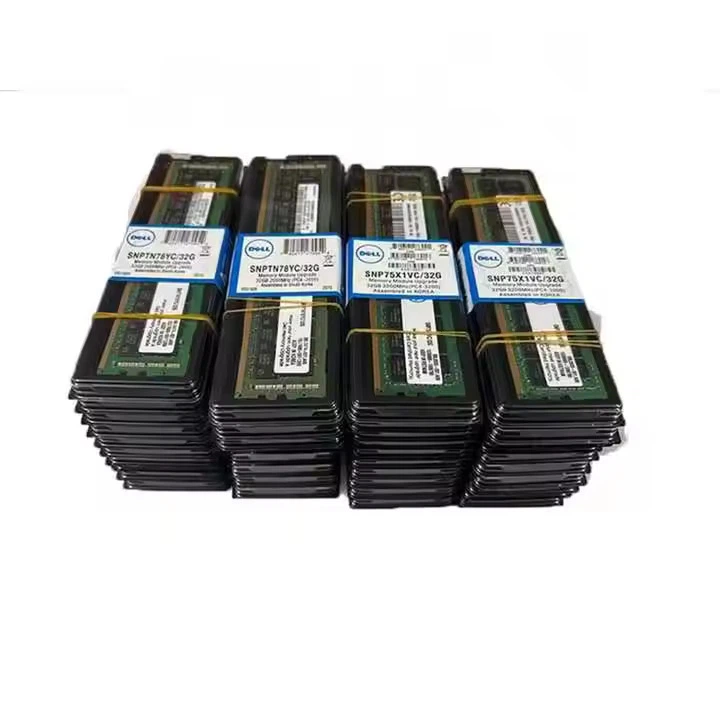
Cleaning Dell RAM contacts is a simple and effective way to improve the performance and reliability of your computer. By following the steps outlined in this blog, you can ensure that your RAM modules are clean and functioning properly. If you're in the market for high-quality Dell RAM modules, we offer a wide range of options, including Dell 32G RAM, Dell 16G RAM, and 128G RAM. Our RAM modules are tested and certified to meet the highest standards of quality and performance. If you have any questions or would like to discuss your RAM needs, please feel free to contact us for a procurement consultation. We're here to help you find the right RAM solution for your computer.
References
- "Computer Hardware Maintenance Guide." PCMag.
- "How to Clean Computer Components." Lifewire.