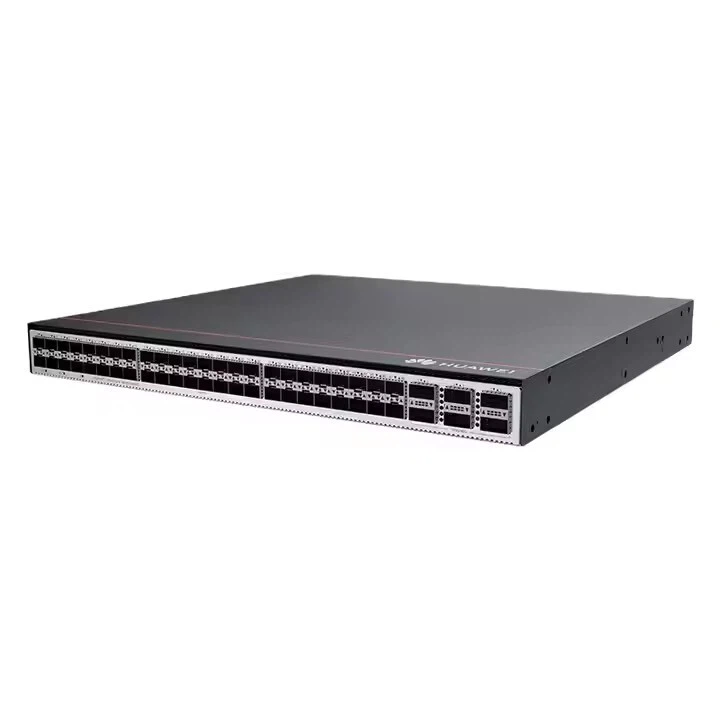
As a reputable Huawei switch supplier, I often encounter customers who are interested in understanding how to configure Network Address Translation (NAT) on a Huawei switch. NAT is a crucial technology that allows multiple devices within a private network to share a single public IP address, thereby conserving public IP addresses and enhancing network security. In this blog post, I will provide a detailed guide on how to configure NAT on a Huawei switch, with a particular focus on some popular models like the S6730 Huawei and Huawei Switch S6730.
Understanding NAT
Before diving into the configuration process, it's essential to have a basic understanding of NAT. NAT operates at the network layer of the OSI model and is used to translate private IP addresses within a local network into public IP addresses when communicating with external networks. There are several types of NAT, including Static NAT, Dynamic NAT, and Port Address Translation (PAT), also known as NAT Overload.
- Static NAT: Maps a single private IP address to a single public IP address on a one-to-one basis. This type of NAT is commonly used for servers that need to be accessible from the Internet.
- Dynamic NAT: Maps private IP addresses to a pool of public IP addresses. When a device in the private network initiates a connection to the Internet, it is assigned a public IP address from the pool.
- PAT (NAT Overload): Allows multiple private IP addresses to share a single public IP address by using different port numbers. This is the most common type of NAT used in home and small business networks.
Prerequisites
Before configuring NAT on a Huawei switch, you need to ensure the following:
- You have a Huawei switch, such as the Huawei S5731 S24P4X, with the appropriate software version installed.
- You have access to the switch's command-line interface (CLI) through a console cable or Telnet/SSH connection.
- You have a valid public IP address or a pool of public IP addresses available.
- You have a clear understanding of your network topology and the IP addresses assigned to your internal devices.
Configuration Steps
Step 1: Enter System View
First, you need to enter the system view of the Huawei switch. Connect to the switch using a console cable or Telnet/SSH, and then log in with your username and password. Once logged in, enter the system view by typing the following command:
<Huawei> system-view
Step 2: Configure the Inside and Outside Interfaces
NAT requires you to define which interfaces are on the inside (private network) and which are on the outside (public network). For example, if your switch has an interface connected to the internal network and another interface connected to the Internet, you need to configure them accordingly.
To configure an interface as an inside interface, use the following commands:
[Huawei] interface GigabitEthernet 0/0/1
[Huawei-GigabitEthernet0/0/1] nat outbound
Replace GigabitEthernet 0/0/1 with the actual interface name of your inside interface.
To configure an interface as an outside interface, use the following commands:
[Huawei] interface GigabitEthernet 0/0/2
[Huawei-GigabitEthernet0/0/2] nat outside
Replace GigabitEthernet 0/0/2 with the actual interface name of your outside interface.
Step 3: Configure Static NAT (Optional)
If you need to configure Static NAT, you can map a specific private IP address to a specific public IP address. Use the following commands to configure Static NAT:
[Huawei] nat static global 203.0.113.1 inside 192.168.1.100
In this example, 203.0.113.1 is the public IP address, and 192.168.1.100 is the private IP address.
Step 4: Configure Dynamic NAT or PAT
If you want to use Dynamic NAT or PAT, you need to create an address pool and then configure the NAT outbound rule.
Create an Address Pool
To create an address pool for Dynamic NAT, use the following commands:
[Huawei] nat address-group 1 203.0.113.10 203.0.113.20
In this example, the address pool ranges from 203.0.113.10 to 203.0.113.20.
To create a single public IP address for PAT, use the following commands:
[Huawei] nat address-group 1 203.0.113.1 203.0.113.1
Configure the NAT Outbound Rule
To configure the NAT outbound rule, use the following commands:
[Huawei] acl number 2000
[Huawei-acl-basic-2000] rule 5 permit source 192.168.1.0 0.0.0.255
[Huawei-acl-basic-2000] quit
[Huawei] nat outbound 2000 address-group 1
In this example, the access control list (ACL) 2000 permits all traffic from the 192.168.1.0/24 network, and the NAT outbound rule maps the traffic to the address pool 1.
Step 5: Verify the Configuration
After configuring NAT, you can verify the configuration using the following commands:

[Huawei] display nat static
[Huawei] display nat session all
The display nat static command shows the Static NAT mappings, and the display nat session all command shows the active NAT sessions.
Troubleshooting
If you encounter any issues with your NAT configuration, here are some common troubleshooting steps:
- Check the interface configuration to ensure that the inside and outside interfaces are correctly configured.
- Verify the address pool configuration to ensure that the public IP addresses are valid and available.
- Check the ACL configuration to ensure that the traffic is permitted through the NAT device.
- Use the
display nat session allcommand to view the active NAT sessions and check for any error messages.
Conclusion
Configuring NAT on a Huawei switch is a relatively straightforward process, but it requires a clear understanding of your network topology and the different types of NAT. By following the steps outlined in this blog post, you should be able to configure NAT on your Huawei switch and enable your internal devices to communicate with the Internet.
If you are interested in purchasing Huawei switches or need further assistance with NAT configuration, please feel free to contact us for procurement discussions. We are committed to providing high-quality Huawei switches and professional technical support to meet your network requirements.
References
- Huawei Switch Configuration Guide
- Network Address Translation (NAT) RFCs