Hey there! As a Dell RAM supplier, I get asked all the time about how to test Dell RAM for errors. It's a crucial step, whether you're just setting up a new system or you suspect something's off with your current one. In this blog, I'll walk you through the ins and outs of testing Dell RAM to ensure your system runs smoothly.
Why Test Dell RAM?
Before we dive into the how, let's talk about the why. RAM, or Random Access Memory, is like the short - term memory of your computer. It stores data that your CPU needs to access quickly. When your RAM has errors, it can cause all sorts of problems. You might experience random crashes, your system could freeze, or you could see blue screen errors on your Dell computer. These issues not only disrupt your workflow but can also lead to data loss. So, testing your Dell RAM regularly is a great way to prevent these headaches.
How to Know if You Need to Test Your Dell RAM?
There are a few tell - tale signs that your Dell RAM might be acting up. If your computer is slower than usual, especially when you have multiple applications open, it could be a sign of RAM issues. You might also notice frequent application crashes or error messages. Another giveaway is if your computer takes forever to boot up or shut down. If you're experiencing any of these symptoms, it's time to test your RAM.
Methods for Testing Dell RAM
1. Windows Memory Diagnostic Tool
If you're running a Windows operating system on your Dell computer, the Windows Memory Diagnostic Tool is a great place to start. It's free and built - in, so you don't have to download any additional software.
Here's how you use it:
- First, click on the Start button.
- Then, type "Windows Memory Diagnostic" in the search bar and select the corresponding app from the search results.
- You'll see two options: "Restart now and check for problems" or "Check for problems the next time I start my computer." Choose the option that works best for you.
- If you select "Restart now and check for problems," your computer will immediately restart and begin the test. This test can take a while, sometimes several hours, depending on the amount of RAM you have.
- Once the test is complete, your computer will restart again, and you can view the results in the Event Viewer. To open the Event Viewer, click on the Start button, type "Event Viewer" in the search bar, and select it. Navigate to Windows Logs > System and look for events related to the memory diagnostic.
2. Memtest86
For a more in - depth test, you can use Memtest86. It's a popular third - party tool that's designed specifically for testing RAM. It has a wide range of tests that can detect even the most subtle errors in your Dell RAM.
To use Memtest86:
- First, you need to download the Memtest86 ISO file from the official website.
- Then, you'll need to create a bootable USB drive. You can use software like Rufus to do this. Just insert a USB drive into your computer, open Rufus, select the Memtest86 ISO file, and click "Start" to create the bootable USB.
- Once the bootable USB is created, shut down your Dell computer and insert the USB drive.
- Restart your computer and enter the BIOS settings. You usually do this by pressing a specific key during the boot process, like F2 or F12 on most Dell computers.
- In the BIOS, change the boot order so that your computer boots from the USB drive first.
- Save the changes and exit the BIOS. Your computer will then boot from the USB and start running Memtest86.
- Memtest86 will run a series of tests on your RAM automatically. It might take several passes to fully test your RAM. You can monitor the progress on the screen, and if any errors are detected, Memtest86 will display them.
Tips for Testing Dell RAM
- Test One Stick at a Time: If you have multiple RAM sticks in your Dell computer, it's a good idea to test each one separately. This way, you can pinpoint which stick (if any) is causing the problem. You can remove all but one RAM stick and run the tests. Then, swap the sticks and repeat the process for each one.
- Keep Your System Cool: High temperatures can cause false positives in RAM tests. Make sure your Dell computer is well - ventilated and not overheating during the test. You can check the temperature of your computer using software like HWMonitor.
- Update Your BIOS: An outdated BIOS can sometimes cause compatibility issues with your RAM. Visit the Dell support website, enter your computer's service tag, and download the latest BIOS update for your model. Install the update according to the instructions provided.
Where to Get Quality Dell RAM
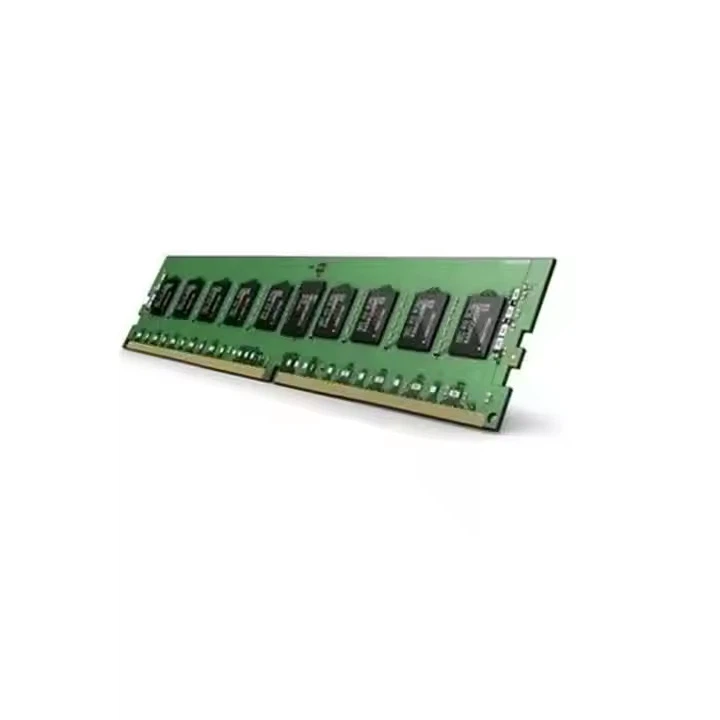
As a Dell RAM supplier, I can offer you a wide range of high - quality Dell RAM options. We have Dell 32G 8G 16G 128G RAM that are fully compatible with Dell systems. If you specifically need Dell 32G RAM or Dell 16G RAM, we've got you covered.
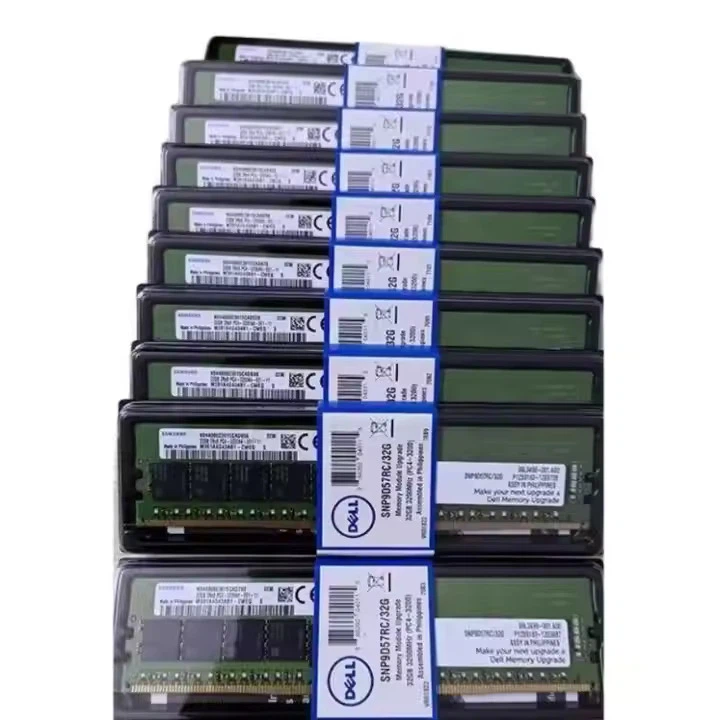
All our Dell RAM products are tested for quality and reliability before they're shipped out. We understand the importance of having stable and high - performance RAM in your Dell computer, whether you're using it for gaming, professional work, or just daily tasks.
Contact Us for Procurement
If you're interested in purchasing Dell RAM for your needs, don't hesitate to reach out. Whether you're a small business looking to upgrade your office computers or an individual gamer wanting to boost your system's performance, we can provide you with the right solution. We're here to answer your questions, offer advice, and help you find the best Dell RAM for your budget and requirements.
References
- Microsoft. (n.d.). Windows Memory Diagnostic. Retrieved from Microsoft official website.
- Memtest86. (n.d.). Memtest86 - The standard for RAM testing. Retrieved from Memtest86 official website.
- Dell. (n.d.). Support for Dell computers. Retrieved from Dell official support website.