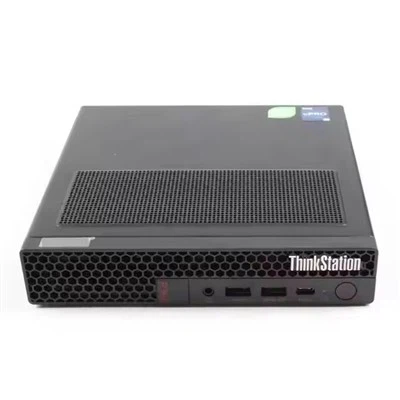
Hey there! As an HP server supplier, I've seen my fair share of network latency issues on HP servers. It can be a real pain in the neck, but don't worry - I'm here to help you troubleshoot those pesky problems.
First off, let's understand what network latency is. In simple terms, latency is the time it takes for data to travel from one point to another on a network. High latency means that data is taking longer to reach its destination, which can result in slow performance, buffering, and even dropped connections.
Now, let's dive into the steps you can take to troubleshoot network latency issues on an HP server.
Step 1: Check the Basics
Before you start digging into the more complex stuff, it's always a good idea to check the basics. Make sure all the cables are properly connected and there are no visible signs of damage. Loose or damaged cables can cause significant latency issues. Also, check if the server's network interface card (NIC) is functioning correctly. You can do this by looking at the status lights on the NIC. If the lights are not blinking or are showing an error, it could be a sign of a problem.


Step 2: Monitor Network Traffic
One of the most common causes of network latency is high network traffic. Use network monitoring tools to check the traffic on your network. Most HP servers come with built - in monitoring tools, or you can use third - party software. Look for any unusual spikes in traffic. It could be that a particular application or user is consuming a large amount of bandwidth, causing latency for other users.
If you find that a specific application is using too much bandwidth, you may need to limit its usage. Some HP servers, like the HP Proliant DL580 G10, have advanced traffic management features that allow you to set bandwidth limits for different applications or users.
Step 3: Check for Network Congestion
Network congestion can also lead to high latency. Congestion occurs when there is more traffic on a network than it can handle. To check for congestion, look at the utilization of your network switches and routers. If the utilization is close to 100%, it's a clear sign of congestion.
You can try upgrading your network infrastructure to handle more traffic. For example, if you're using an old switch, consider replacing it with a more modern, high - capacity switch. Another option is to segment your network into smaller sub - networks. This can help distribute the traffic more evenly and reduce congestion.
Step 4: Update Server and Network Drivers
Outdated drivers can cause all sorts of problems, including network latency. Make sure that the drivers for your server's NIC and other network components are up to date. You can usually find the latest drivers on the HP official website.
Updating the drivers can improve the performance of your network interface and reduce latency. It's also a good idea to check for any firmware updates for your server. Firmware updates can often fix bugs and improve the overall stability of the server.
Step 5: Check for Network Interference
Wireless networks are particularly susceptible to interference, which can cause latency. If your HP server is connected to a wireless network, check for sources of interference. Common sources include microwave ovens, cordless phones, and other wireless devices operating on the same frequency.
If possible, switch to a different wireless channel. Most wireless routers allow you to change the channel, and choosing a less congested channel can significantly reduce interference and latency.
Step 6: Analyze Firewall and Security Settings
Your server's firewall and security settings can sometimes cause latency issues. Firewalls are designed to block unauthorized access, but they can also block legitimate traffic if the rules are too strict. Review your firewall rules and make sure that they are not blocking any necessary network traffic.
If you're using a third - party security software, check its settings as well. Some security software may have features that can slow down network performance, such as deep packet inspection. You may need to adjust these settings to balance security and performance.
Step 7: Test the Network with Different Devices
To isolate the problem, test the network with different devices. Connect a different computer or device to the same network and see if it experiences the same latency issues. If the new device works fine, the problem may be specific to your HP server.
On the other hand, if all devices on the network are experiencing latency, the problem is likely related to the network infrastructure itself. In this case, you may need to consult with a network administrator or an IT professional.
Step 8: Consider Server Hardware Issues
Sometimes, the root cause of network latency can be a hardware issue with the server itself. For example, if the server's hard drive is failing or has a high load, it can affect network performance. Check the server's system logs for any error messages related to the hard drive or other hardware components.
If you suspect a hardware problem, it's best to contact HP support or a qualified technician. They can perform diagnostic tests to identify and fix the problem.
Step 9: Evaluate Server Configuration
Incorrect server configuration can also lead to latency issues. Check the server's network settings, such as IP addresses, subnet masks, and DNS settings. Make sure that they are configured correctly.
If you're using a virtualized environment on your HP server, like on the Proliant DL360 Gen10 8sff, check the virtual machine settings as well. Incorrectly configured virtual machines can consume excessive resources and cause latency.
Step 10: Seek Professional Help
If you've tried all the above steps and still can't resolve the network latency issue, it's time to seek professional help. As an HP server supplier, we have a team of experienced technicians who can diagnose and fix complex network problems. We can also provide you with advice on upgrading your server or network infrastructure to prevent future latency issues.
If you're experiencing network latency issues on your HP server and need assistance, or if you're looking to purchase a new HP server like the HPE Proliant DL380 Gen10 Plus 8sff, don't hesitate to reach out. We're here to help you get the most out of your HP servers and ensure a smooth - running network.
References
- HP Server User Manuals
- Network Administration Best Practices Guides
- IT Security and Performance Whitepapers