


In the ever - evolving landscape of data storage, the demand for high - capacity solid - state drives (SSDs) has been on a meteoric rise. As a 22TB SSD supplier, I often encounter questions from Mac users about the compatibility of our high - capacity SSDs with their beloved Apple machines. In this blog post, I'll delve into the technical aspects of using a 22TB SSD with a Mac, exploring the possibilities, challenges, and best practices.
Understanding the Mac's Storage Ecosystem
Mac computers have a unique storage architecture that has evolved over the years. From the early days of traditional hard disk drives (HDDs) to the modern era of SSDs, Apple has been at the forefront of technological innovation in storage.
Most modern Macs, such as the MacBook Pro, iMac, and Mac mini, come equipped with built - in SSDs. These SSDs are typically in the M.2 form factor, which offers high - speed data transfer and compact size. However, the maximum capacity of the built - in SSDs in consumer - grade Macs is usually limited. For example, as of now, the highest - capacity SSD option in a standard MacBook Pro is 8TB.
Technical Compatibility Issues
When considering using a 22TB SSD with a Mac, several technical factors need to be taken into account.
Interface Compatibility
One of the primary concerns is the interface. Most 22TB SSDs use the NVMe (Non - Volatile Memory Express) protocol, which offers extremely high data transfer speeds. Macs support NVMe SSDs, but the Mac's motherboard must have an appropriate NVMe slot. For example, the newer models of Macs with M.2 slots are generally compatible with NVMe - based SSDs. However, older Mac models may not have NVMe support or may require additional adapters.
Power Requirements
A 22TB SSD is a high - capacity device that requires a significant amount of power to operate. Macs are designed to power their built - in components efficiently, but adding a large - capacity external SSD may strain the power supply. If the SSD is connected externally via a Thunderbolt or USB interface, the Mac's power output through these ports may not be sufficient to drive the 22TB SSD at its full potential. In some cases, the SSD may require an external power source.
File System Compatibility
Macs use the APFS (Apple File System) as their native file system. While most modern SSDs support a variety of file systems, including APFS, it's essential to ensure that the 22TB SSD can be formatted to APFS without any issues. Formatting the SSD to APFS will allow seamless integration with the Mac's operating system, enabling features such as Time Machine backups and file encryption.
Advantages of Using a 22TB SSD with a Mac
Despite the potential challenges, there are several compelling reasons for Mac users to consider using a 22TB SSD.
Massive Storage Capacity
The most obvious advantage is the sheer amount of storage space. For creative professionals, such as photographers, videographers, and graphic designers, a 22TB SSD provides ample room to store large - scale projects, high - resolution images, and uncompressed video files. For example, a professional photographer who shoots in RAW format can store thousands of images on a 22TB SSD without having to worry about running out of space.
High - Speed Data Transfer
NVMe - based 22TB SSDs offer blazing - fast data transfer speeds. This means that Mac users can access their files quickly, reducing the time spent waiting for data to load. Whether it's opening a large Photoshop file or importing a high - definition video into Final Cut Pro, the high - speed data transfer of a 22TB SSD can significantly improve workflow efficiency.
How to Use a 22TB SSD with a Mac
If you've decided to use a 22TB SSD with your Mac, here are the steps to follow:
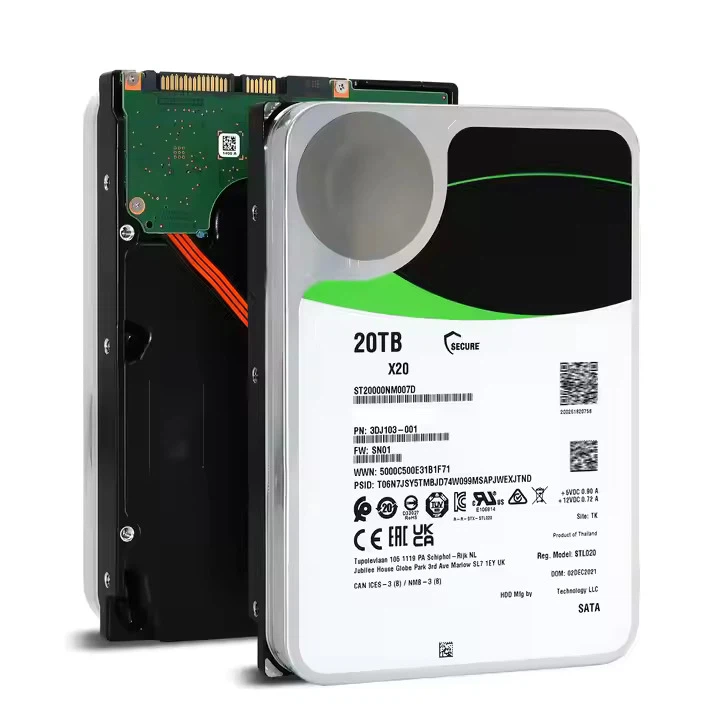

- Check Compatibility: Before purchasing a 22TB SSD, ensure that your Mac is compatible with the SSD's interface and power requirements. You can refer to Apple's official documentation or consult with a technical expert.
- Format the SSD: Once you've confirmed compatibility, format the 22TB SSD to APFS. You can do this using the Disk Utility application on your Mac.
- Connect the SSD: Connect the 22TB SSD to your Mac using the appropriate interface. If the SSD requires an external power source, make sure it is properly connected.
- Configure Settings: After connecting the SSD, you may need to configure some settings, such as enabling Time Machine backups or setting up file encryption.
Other High - Capacity SSD Options for Macs
If a 22TB SSD is not the right fit for your needs, there are other high - capacity SSD options available. For example, you can consider the SSD M.2 10TB, which offers a large amount of storage at a relatively lower cost. Another option is the M.2 8TB SSD, which is a popular choice for Mac users who need a significant amount of storage but don't require the massive capacity of a 22TB drive.
Conclusion
In conclusion, a 22TB SSD can be used with a Mac, but it requires careful consideration of technical compatibility issues. While there are challenges, the benefits of having a massive amount of high - speed storage make it an attractive option for many Mac users, especially those in the creative industries.
If you're interested in purchasing a SSD 22TB or any of our other high - capacity SSDs, we're here to assist you. Our team of experts can provide you with detailed information about compatibility, installation, and configuration. Feel free to reach out to us to start a procurement discussion and find the best storage solution for your Mac.
References
- Apple Inc. "MacBook Pro Technical Specifications." Apple official website.
- NVMe.org. "NVMe Technology Overview." NVMe official website.
- Various SSD manufacturer datasheets for 22TB, 10TB, and 8TB SSDs.




