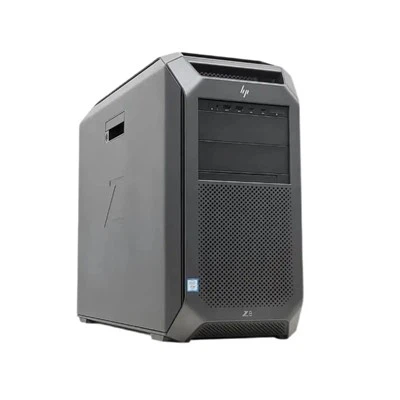
Can an SSD be used in a desktop computer?
In the ever - evolving landscape of computer technology, Solid State Drives (SSDs) have emerged as a revolutionary storage solution. As an SSD supplier, I am often asked whether an SSD can be used in a desktop computer. The answer is a resounding yes, and in this blog, I will delve into the details of why SSDs are an excellent choice for desktop computers, the different types of SSDs available for desktops, and how to install them.
Why Use an SSD in a Desktop Computer?
The primary advantage of using an SSD in a desktop computer is speed. Traditional Hard Disk Drives (HDDs) rely on spinning platters and moving read - write heads. This mechanical operation makes them significantly slower compared to SSDs, which use flash memory to store data. With an SSD, your desktop can boot up in a matter of seconds, applications can launch almost instantaneously, and file transfers are much faster.
For example, if you are a gamer, an SSD can reduce the loading times of games, allowing you to jump into the action more quickly. Content creators can also benefit from the speed of SSDs. Editing high - resolution videos or working on large photo projects requires fast data access, and an SSD can provide the necessary performance to make the workflow smoother.
Another benefit is reliability. Since SSDs have no moving parts, they are less prone to mechanical failures caused by shock, vibration, or wear and tear. This means that your data is safer, and you are less likely to experience sudden drive failures that could result in data loss.
In addition, SSDs are more energy - efficient than HDDs. They consume less power, which not only reduces your electricity bill but also helps in keeping your desktop cooler. A cooler system can improve the overall lifespan of your computer components.
Types of SSDs for Desktop Computers
There are several types of SSDs that can be used in desktop computers.
-
SATA SSDs
SATA (Serial ATA) SSDs are the most common type and are widely compatible with desktop computers. They use the same interface as traditional HDDs, which means that they can be easily installed in existing desktop systems without the need for any additional hardware upgrades. SATA SSDs offer a good balance between performance and cost. They are suitable for general - purpose computing tasks such as web browsing, word processing, and light gaming. -
NVMe SSDs
NVMe (Non - Volatile Memory Express) SSDs are the latest and fastest type of SSDs available. They use the PCIe (Peripheral Component Interconnect Express) interface, which provides much higher data transfer speeds compared to SATA. NVMe SSDs are ideal for users who require high - performance storage, such as professional gamers, video editors, and data analysts.
There are two main form factors for NVMe SSDs in desktop computers: M.2 and U.2. The M.2 form factor is small and is often used in compact desktops or systems where space is limited. You can find high - capacity options like the SSD M.2 10TB and 16TB M.2 SSD, which are perfect for users who need a large amount of fast storage. The U.2 form factor is larger but offers even better performance and is commonly used in enterprise - level desktops or high - end workstations.
- M.2 SSDs
M.2 SSDs are a popular choice for desktop computers due to their small size and high performance. They come in different lengths and can support both SATA and NVMe protocols. The M.2 8TB SSD is a great option for those who need a large - capacity, high - speed storage solution in a compact form factor. M.2 SSDs are easy to install, usually requiring just a single screw to secure them to the motherboard.
How to Install an SSD in a Desktop Computer
Installing an SSD in a desktop computer is a relatively straightforward process.
-
Prepare Your Computer
First, make sure your computer is turned off and unplugged from the power source. Ground yourself to prevent static electricity from damaging the components. Open the computer case by removing the side panel. -
Choose the Installation Location
If you are installing a SATA SSD, find an available SATA port on the motherboard and a SATA power connector from the power supply. For NVMe M.2 SSDs, locate the M.2 slot on the motherboard. Some motherboards may have multiple M.2 slots, so make sure to choose the one that supports the protocol (SATA or NVMe) of your SSD. -
Install the SSD
For a SATA SSD, connect the SATA data cable to the SSD and the corresponding port on the motherboard. Then, connect the SATA power cable to the SSD. Secure the SSD in an available drive bay using screws.
If you are installing an M.2 SSD, align the SSD with the M.2 slot on the motherboard. Insert the SSD at a slight angle and then gently press it down until it is flat against the motherboard. Secure it with a screw.
- Install the Operating System
After installing the SSD, you need to install the operating system. You can use a USB installation drive to boot your computer and follow the on - screen instructions to install the operating system on the new SSD.
Considerations When Choosing an SSD for Your Desktop
When choosing an SSD for your desktop computer, there are several factors to consider.
-
Capacity
Determine how much storage space you need. If you are a casual user who mainly uses the computer for web browsing and word processing, a 256GB or 512GB SSD may be sufficient. However, if you are a gamer or a content creator, you may need a larger capacity, such as 1TB, 2TB, or even more. -
Performance
Consider the read and write speeds of the SSD. NVMe SSDs generally offer much higher speeds than SATA SSDs. If you need fast data access for tasks like gaming or video editing, an NVMe SSD is a better choice. -
Price
SSDs can vary in price depending on their capacity and performance. Compare different models and brands to find the one that offers the best value for your money.

Conclusion
In conclusion, an SSD can definitely be used in a desktop computer, and it offers numerous benefits in terms of speed, reliability, and energy efficiency. Whether you are a casual user or a professional, upgrading to an SSD can significantly improve the performance of your desktop computer.
As an SSD supplier, we offer a wide range of high - quality SSDs suitable for desktop computers. If you are interested in purchasing SSDs for your desktop or have any questions about our products, please feel free to contact us for a procurement discussion. We are committed to providing you with the best storage solutions to meet your needs.
References
- Kingston Technology. "SSD vs. HDD: What's the Difference?" Kingston.com.
- Samsung Electronics. "Understanding SSDs for Desktop PCs." Samsung.com.
- Western Digital. "Choosing the Right SSD for Your Desktop." WesternDigital.com.