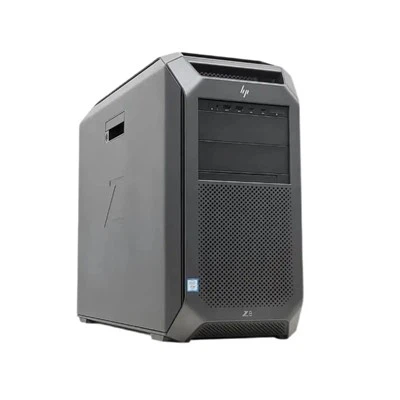
Hey there! If you're here, chances are you're wondering, "Can I upgrade Dell kiosk PC RAM?" Well, you've come to the right place. I'm a supplier of Dell RAM, and I'm gonna break it all down for you.
First off, let's talk about why you might want to upgrade your Dell kiosk PC's RAM. Kiosk PCs are often used in high - traffic areas like malls, airports, and banks. They need to handle multiple tasks simultaneously, such as running interactive software, processing transactions, and displaying multimedia content. If your kiosk is running slow, it could be because the RAM is maxed out. More RAM means your PC can handle more data at once, leading to smoother performance and faster response times.
Now, the big question: Can you actually upgrade the RAM in a Dell kiosk PC? The short answer is, in most cases, yes. Dell kiosk PCs are designed with user - serviceability in mind. Most models have accessible RAM slots that allow you to add or replace memory modules. However, there are a few things you need to consider before you go ahead with the upgrade.
Compatibility
The most important factor is compatibility. Not all RAM modules are created equal, and you need to make sure the RAM you choose is compatible with your Dell kiosk PC. You'll need to check the following:
- Type of RAM: Dell kiosk PCs typically use either DDR3 or DDR4 RAM. You can find out which type your PC uses by checking the system specifications in the BIOS or by looking up the model number on Dell's official website.
- Speed: RAM comes in different speeds, measured in MHz. Your PC will have a maximum supported speed, and using RAM that is faster than this won't necessarily give you a performance boost. Make sure to choose RAM with a speed that is compatible with your PC.
- Capacity: You also need to consider the maximum amount of RAM your PC can support. Some older Dell kiosk models may only support up to 8GB of RAM, while newer ones can handle 16GB, 32GB, or even more. Check your PC's specifications to find out the maximum capacity.
Finding the Right RAM
As a Dell RAM supplier, I can help you find the perfect RAM for your kiosk PC. We offer a wide range of Dell RAM modules, including Dell RAM 8GB, Dell 16G RAM, and even 128G RAM for high - end applications.
Our RAM modules are sourced directly from reputable manufacturers and are tested to ensure they meet the highest quality standards. Whether you need a single module to upgrade your existing setup or a complete set for a new kiosk build, we've got you covered.
How to Upgrade the RAM
Once you've found the right RAM for your Dell kiosk PC, it's time to install it. Here's a step - by - step guide to help you through the process:
- Power off your PC: Before you start working on your PC, make sure it is completely powered off and unplugged from the power source. This will prevent any electrical damage to the components.
- Open the case: Most Dell kiosk PCs have a removable side panel. Locate the screws or latches that hold the panel in place and remove them. Carefully slide the panel off to expose the internal components.
- Locate the RAM slots: The RAM slots are usually located near the CPU. They are long, rectangular slots with small clips on either end.
- Remove the old RAM (if applicable): If you're replacing existing RAM, gently push the clips on either side of the module outward. The RAM module will pop up at an angle. Carefully remove it from the slot.
- Install the new RAM: Take your new RAM module and align it with the slot. Make sure the notch on the module matches the ridge in the slot. Gently press the module into the slot until the clips on either side snap into place.
- Close the case: Once the new RAM is installed, carefully slide the side panel back on and secure it with the screws or latches.
- Power on your PC: Plug your PC back in and power it on. Your PC should automatically detect the new RAM. You can check the system properties to confirm that the new RAM is being recognized.
Benefits of Upgrading
Upgrading the RAM in your Dell kiosk PC can have several benefits:
- Improved performance: With more RAM, your kiosk PC will be able to handle multiple tasks more efficiently. This means faster loading times, smoother video playback, and better overall performance.
- Enhanced user experience: If your kiosk is used by customers, upgrading the RAM can improve their experience. They'll be able to interact with the kiosk more quickly and easily, leading to higher satisfaction rates.
- Future - proofing: As software and applications become more demanding, having more RAM will ensure that your kiosk PC can keep up. This can extend the lifespan of your kiosk and save you money in the long run.
Cost - effectiveness
Upgrading the RAM is also a cost - effective way to improve the performance of your Dell kiosk PC. Buying a new kiosk can be expensive, especially if you only need to improve the memory. By upgrading the RAM, you can get the performance boost you need without breaking the bank.


Conclusion
So, to answer the question, "Can I upgrade Dell kiosk PC RAM?" Yes, you can! With the right knowledge and the right RAM, you can easily upgrade the memory in your Dell kiosk PC and enjoy improved performance.
If you're interested in upgrading your Dell kiosk PC's RAM, or if you have any questions about compatibility or installation, don't hesitate to reach out. As a Dell RAM supplier, I'm here to help you find the best solution for your needs. Whether you're a small business owner looking to improve the performance of your kiosk or a large corporation managing a fleet of kiosks, we can provide you with high - quality RAM at competitive prices. Contact us today to start the conversation about your RAM upgrade.
References
- Dell official website for system specifications.
- General knowledge of computer hardware and RAM technology.