


Hey there! As a Dell RAM supplier, I often get asked about how to check Dell RAM usage. It's a pretty common concern, especially for those who use their Dell computers for resource - intensive tasks like gaming, video editing, or running multiple applications at once. In this blog, I'll walk you through the steps to check your Dell RAM usage and also give you some insights on how to manage it better.
Why Checking RAM Usage Matters
First off, let's talk about why it's important to keep an eye on your Dell RAM usage. RAM, or Random Access Memory, is like the short - term memory of your computer. It stores the data that your computer is currently using or processing. If your RAM is running low, your computer might start to slow down, freeze, or even crash. So, by checking your RAM usage, you can figure out if you need to upgrade your RAM or close some unnecessary programs.
Checking RAM Usage on Windows (Dell Computers)
Most Dell computers come with Windows operating systems, so let's start with how to check RAM usage on Windows.
Method 1: Using Task Manager
The easiest way to check your RAM usage on Windows is through the Task Manager. You can open it by right - clicking on the taskbar and selecting "Task Manager" from the menu. Or, you can just press Ctrl + Shift + Esc on your keyboard.

Once the Task Manager is open, click on the "Performance" tab. Here, you'll see a list of different system resources, and one of them is "Memory". Click on "Memory", and you'll get detailed information about your RAM usage. You can see the total amount of RAM your computer has, how much is being used, and how much is available.
The Task Manager also shows you which applications are using the most RAM. This can be really helpful if you want to close some memory - hogging programs to free up some space. For example, if you see that a browser with multiple tabs open is using a large amount of RAM, you can close some of the unnecessary tabs or the browser itself.
Method 2: Using Resource Monitor
Another way to get more in - depth information about your RAM usage is by using the Resource Monitor. You can open it by typing "resmon" in the Windows search bar and hitting Enter.
In the Resource Monitor, click on the "Memory" tab. Here, you'll find detailed information about your RAM usage, including how much is being used by hardware, how much is in standby mode, and how much is being used by the system cache. You can also see which processes are using the most physical memory and which ones are using the most commit charge (a measure of how much memory a process has requested).
Checking RAM Usage on macOS (Dell Computers with Boot Camp)
Some Dell users might have installed macOS on their computers using Boot Camp. If you're one of them, here's how you can check your RAM usage.
Using Activity Monitor
To check your RAM usage on macOS, open the "Activity Monitor". You can find it in the "Utilities" folder within the "Applications" folder, or you can just use Spotlight Search (press Command + Space and type "Activity Monitor").
Once the Activity Monitor is open, click on the "Memory" tab. Here, you'll see a graph that shows your RAM usage over time, as well as detailed information about how much RAM is being used by different processes. You can sort the processes by memory usage to see which ones are using the most RAM.
What to Do If Your RAM Usage Is High
If you find that your RAM usage is constantly high, there are a few things you can do.
Close Unnecessary Programs
As I mentioned earlier, closing programs that you're not using can free up a significant amount of RAM. For example, if you're not using your email client or a media player, close them.
Upgrade Your RAM
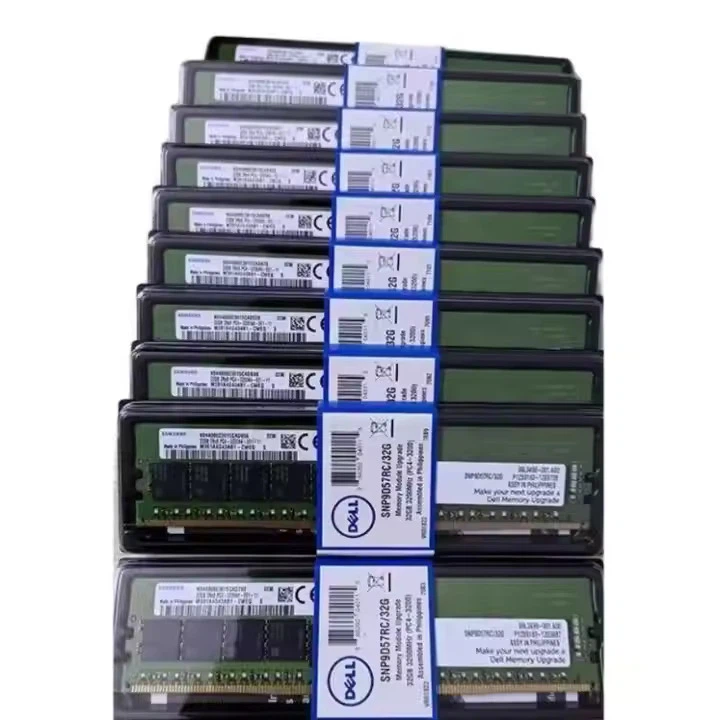
If closing unnecessary programs doesn't solve the problem, it might be time to upgrade your RAM. We offer a variety of Dell RAM options, including Dell 16G RAM, Dell 32G RAM, and even 128G RAM. Upgrading your RAM can significantly improve your computer's performance, especially if you're using resource - intensive applications.
Optimize Your System Settings
You can also optimize your system settings to reduce RAM usage. For example, you can turn off visual effects in Windows or reduce the number of startup programs. In Windows, you can go to the "System Properties" and click on the "Advanced system settings" link. Then, in the "Performance" section, click on "Settings" and select "Adjust for best performance" to turn off most visual effects.
How Our Dell RAM Can Help
As a Dell RAM supplier, we understand the importance of having reliable and high - performance RAM. Our Dell RAM is designed to work seamlessly with Dell computers, ensuring optimal performance and stability. Whether you're a casual user who just wants to browse the web and check emails or a professional who needs to run complex applications, we have the right RAM for you.
Our RAM is tested to meet the highest quality standards, so you can be sure that you're getting a product that will last. And if you're not sure which RAM is right for your Dell computer, our customer support team is always here to help.
Contact Us for Dell RAM Procurement
If you're interested in purchasing Dell RAM from us, we'd love to have a chat with you. Whether you need to upgrade your existing RAM or are building a new Dell computer from scratch, we can provide you with the best solutions. Just reach out to us, and we'll guide you through the procurement process.
References
- Microsoft Support: Information on using Task Manager and Resource Monitor in Windows.
- Apple Support: Guide on using Activity Monitor in macOS.




