VLAN, or Virtual Local Area Network, is a fundamental concept in modern network design. It allows network administrators to segment a physical network into multiple logical networks, which can enhance network security, performance, and management efficiency. VLAN pruning is an advanced feature that can further optimize the use of network bandwidth by preventing unnecessary traffic from traversing trunk links. In this blog post, as a Cisco switch supplier, I'll guide you through the process of configuring VLAN pruning on a Cisco switch.
Understanding VLAN Pruning
Before we dive into the configuration process, let's first understand what VLAN pruning is and why it's important. When you have multiple VLANs on a network, all VLAN traffic is typically sent across trunk links by default. This can lead to wasted bandwidth, especially if some VLANs only have devices on one side of the trunk.
VLAN pruning helps to mitigate this issue by allowing the switch to prevent the transmission of VLAN traffic on trunk links where that traffic is not needed. This way, only the necessary VLAN traffic is sent across the trunk, freeing up bandwidth for other important network operations.
Prerequisites for Configuring VLAN Pruning
To configure VLAN pruning on a Cisco switch, you'll need the following:

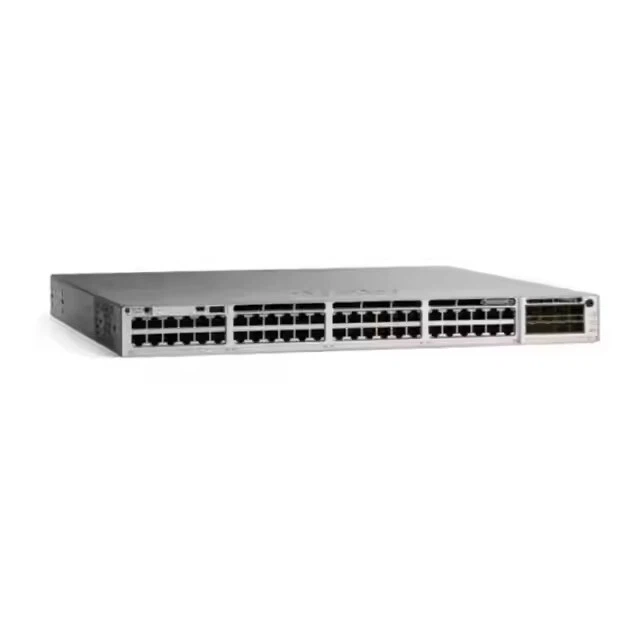
- A Cisco switch that supports VLAN pruning. Some of our popular models include Switch Cisco C9200, Switch Cisco Catalyst 9300, and Switch Cisco C2960.
- Basic knowledge of VLANs and trunking concepts.
- Access to the switch's command-line interface (CLI) in privileged EXEC mode.
Step-by-Step Guide to Configuring VLAN Pruning
Step 1: Enable VTP Pruning
VLAN Trunking Protocol (VTP) is a Cisco proprietary protocol that allows you to manage VLANs across multiple switches in a network. VLAN pruning is a feature that works in conjunction with VTP. Before you can configure VLAN pruning, you need to ensure that VTP pruning is enabled on the switch.
Here's how you can enable VTP pruning on a Cisco switch:
Switch# configure terminal
Switch(config)# vtp mode server
Switch(config)# vtp pruning
Switch(config)# end
In the above commands:
vtp mode server: Sets the switch to VTP server mode. In a network, at least one switch must be in VTP server mode to propagate VLAN information.vtp pruning: Enables VTP pruning on the switch.end: Exits the configuration mode and returns to the privileged EXEC mode.
Step 2: Verify VTP Pruning Status
After enabling VTP pruning, you can verify its status using the following command:
Switch# show vtp status
This command will display the VTP configuration information, including the VTP mode, domain name, and whether VTP pruning is enabled. Look for the "Pruning Enabled" field in the output. If it says "Yes", then VTP pruning is successfully enabled on the switch.
Step 3: Identify Trunk Links
VLAN pruning only affects trunk links, which are used to carry traffic from multiple VLANs between switches. You need to ensure that the trunk links on your switch are properly configured. To check if a port is configured as a trunk, you can use the following command:
Switch# show interfaces trunk
This command will display a list of all the trunk ports on the switch, along with the allowed VLANs on each trunk.
Step 4: Modify VLAN Pruning Settings (Optional)
By default, VTP pruning automatically determines which VLANs can be pruned based on the presence of devices in each VLAN on either side of the trunk. However, you can also manually configure which VLANs can be pruned.
To manually configure VLAN pruning, you can use the following command:
Switch(config)# interface <interface-name>
Switch(config-if)# switchport trunk pruning vlan <vlan-list>
In the above commands:
<interface-name>: Specifies the trunk interface for which you want to configure VLAN pruning.<vlan-list>: Specifies a list of VLANs that you want to allow or disallow for pruning. You can use a single VLAN ID, a range of VLAN IDs (e.g., 10 - 20), or a comma-separated list of VLAN IDs (e.g., 10, 20, 30).
Step 5: Verify VLAN Pruning Configuration
After configuring VLAN pruning, it's important to verify that the configuration is working as expected. You can use the following command to check the VLAN pruning status on a specific trunk interface:
Switch# show interfaces <interface-name> trunk
This command will display detailed information about the trunk interface, including the allowed VLANs and the pruned VLANs.
Troubleshooting VLAN Pruning Issues
If you encounter any issues with VLAN pruning, here are some common problems and solutions:
- VTP Pruning Not Enabled: Make sure that VTP pruning is enabled on all switches in the VTP domain. You can use the
show vtp statuscommand to verify the VTP pruning status on each switch. - Incorrect VLAN Configuration: Double-check the VLAN configuration on each switch to ensure that the VLANs are properly defined and that the trunk links are configured to allow the desired VLANs.
- VTP Domain Mismatch: Ensure that all switches in the network are part of the same VTP domain. You can use the
show vtp statuscommand to check the VTP domain name on each switch.
Conclusion
Configuring VLAN pruning on a Cisco switch is a relatively straightforward process that can significantly improve network bandwidth utilization. By following the steps outlined in this blog post, you can easily enable and verify VLAN pruning on your Cisco switches.
As a Cisco switch supplier, we offer a wide range of high-quality Cisco switches that support advanced features like VLAN pruning. If you're interested in optimizing your network infrastructure with VLAN pruning or need help with network configuration, we're here to assist you. Contact us to discuss your specific requirements and explore the best solutions for your network.
References
- Cisco Systems, Inc. "Configuring VLANs." Cisco IOS LAN Switching Configuration Guide, Release 15.2.
- Dwayne Newton. "CCNA Routing and Switching Portable Command Guide." Cisco Press, 2015.