


As a reliable Huawei switch supplier, I often receive inquiries from customers about various Huawei switch configurations. One common question is how to configure DHCP relay on a Huawei switch. In this blog post, I'll guide you through the process step by step, ensuring that you can set up DHCP relay effectively on your Huawei switches.
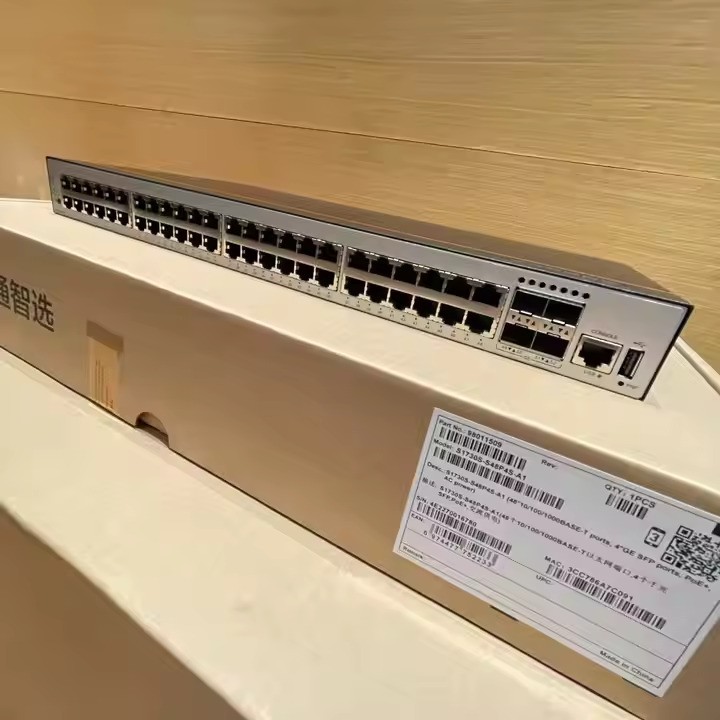

Understanding DHCP Relay
Before diving into the configuration process, let's briefly understand what DHCP relay is. DHCP (Dynamic Host Configuration Protocol) is used to automatically assign IP addresses and other network configuration parameters to devices on a network. However, in large networks, DHCP servers may not be able to directly communicate with all subnets. That's where DHCP relay comes in. A DHCP relay agent can forward DHCP messages between DHCP clients and servers across different subnets, allowing clients in multiple subnets to obtain IP addresses from a central DHCP server.
Prerequisites
- A Huawei switch: For this guide, I'll use general commands that are applicable to many Huawei switch models, such as the Huawei S6700, Huawei S1730, and Huawei S5700 Switch.
- A DHCP server: You need to have a DHCP server configured with appropriate IP address pools for different subnets.
- Basic knowledge of network configuration: Familiarity with concepts like IP addressing, subnets, and VLANs is helpful.
Configuration Steps
Step 1: Enter System View
First, you need to log in to the Huawei switch using a terminal emulator like PuTTY. Once logged in, enter the system view by using the following command:
<Huawei> system-view
This command takes you from the user view to the system view, where you can perform more in - depth configuration tasks.
Step 2: Create and Configure VLANs (if necessary)
If your network uses VLANs, you need to create and configure them on the switch. For example, to create VLAN 10 and VLAN 20, use the following commands:
[Huawei] vlan batch 10 20
Then, you can assign interfaces to these VLANs. Suppose you want to assign interface GigabitEthernet 0/0/1 to VLAN 10:
[Huawei] interface GigabitEthernet 0/0/1
[Huawei-GigabitEthernet0/0/1] port link-type access
[Huawei-GigabitEthernet0/0/1] port access vlan 10
[Huawei-GigabitEthernet0/0/1] quit
Step 3: Configure Interface IP Addresses
For each VLAN interface, you need to configure an IP address. This IP address will be used as the gateway for the devices in that VLAN. For example, to configure an IP address for VLAN 10:
[Huawei] interface Vlanif 10
[Huawei-Vlanif10] ip address 192.168.10.1 24
[Huawei-Vlanif10] quit
Step 4: Enable DHCP Relay
To enable DHCP relay on a VLAN interface, you need to specify the IP address of the DHCP server. For example, if the DHCP server's IP address is 192.168.1.100, and you want to enable DHCP relay on VLAN 10:
[Huawei] interface Vlanif 10
[Huawei-Vlanif10] dhcp select relay
[Huawei-Vlanif10] dhcp relay server - ip 192.168.1.100
[Huawei-Vlanif10] quit
You can repeat this step for other VLAN interfaces if you have multiple subnets that need DHCP relay services.
Step 5: Verify the Configuration
After completing the configuration, you can verify it using the following commands:
[Huawei] display dhcp relay server - ip
This command will show you the configured DHCP relay server IP addresses for each interface. You can also check the interface configuration using the display interface command to ensure that the IP addresses and DHCP relay settings are correct.
Troubleshooting Tips
- Check connectivity: Make sure that the switch can communicate with the DHCP server. You can use the
pingcommand to test the connectivity between the switch's VLAN interface and the DHCP server. - Check DHCP server settings: Ensure that the DHCP server has appropriate IP address pools configured for the subnets where the DHCP relay is enabled.
- Check switch logs: Use the
display logbuffercommand to view the switch logs. It may provide clues about any errors or issues during the DHCP relay process.
Conclusion
Configuring DHCP relay on a Huawei switch is a relatively straightforward process once you understand the basic concepts and follow the steps carefully. By enabling DHCP relay, you can efficiently manage IP address allocation in large networks with multiple subnets.
If you are interested in purchasing Huawei switches or need further assistance with switch configuration, feel free to reach out to us. We are a professional Huawei switch supplier with extensive experience in network solutions. Our team of experts can provide you with high - quality products and reliable technical support. Contact us to start a procurement discussion and find the best network solutions for your business.
References
- Huawei Switch Configuration Manuals
- Network Fundamentals Textbooks




