


Hey there! I'm a supplier of Huawei switches, and today I'm gonna walk you through how to configure Protocol Independent Multicast (PIM) on a Huawei switch. PIM is a crucial technology for multicast routing, and getting it set up right can make a huge difference in your network's performance.
What is PIM?
Before we dive into the configuration process, let's quickly go over what PIM is. PIM is a family of multicast routing protocols that don't rely on a specific unicast routing protocol. There are mainly two modes: PIM Sparse Mode (PIM - SM) and PIM Dense Mode (PIM - DM).
PIM - DM assumes that all receivers are interested in the multicast traffic and floods the traffic throughout the network initially. Then, it prunes back the branches where there are no interested receivers. On the other hand, PIM - SM assumes that there are only a few receivers interested in the multicast traffic and uses a shared tree and source - specific trees to forward the traffic.
Prerequisites
Before you start configuring PIM on your Huawei switch, there are a few things you need to have in place:
- Basic network connectivity: Make sure your switch is properly connected to the network, and you can access it via the console or through SSH.
- Switch knowledge: You should have a basic understanding of how your Huawei switch works, including how to access the command - line interface (CLI).
- Multicast group addresses: You need to know the multicast group addresses you want to use for your multicast traffic.
Configuring PIM on a Huawei Switch
Step 1: Enter System View
First, you need to access the system view of your Huawei switch. You can do this by logging into the switch using the console or SSH and then entering the following command:
<Switch> system - view
This command takes you from the user view to the system view, where you can start making configuration changes.
Step 2: Enable PIM Globally
Once you're in the system view, you need to enable PIM globally on your switch. You can do this by using the following command:
[Switch] multicast routing - enable
[Switch] pim
The multicast routing - enable command enables multicast routing on the switch, and the pim command enables PIM globally.
Step 3: Configure PIM Mode
Now, you need to decide which PIM mode you want to use. As mentioned earlier, the two main modes are PIM - SM and PIM - DM. Let's say you want to use PIM - SM. You can configure it using the following command:
[Switch] pim sm
If you want to use PIM - DM, you can use the command pim dm instead.
Step 4: Enable PIM on Interfaces
After enabling PIM globally and choosing the mode, you need to enable PIM on the interfaces that will be involved in multicast traffic. For example, if you have an interface named GigabitEthernet 0/0/1, you can enable PIM on it using the following commands:
[Switch] interface GigabitEthernet 0/0/1
[Switch - GigabitEthernet0/0/1] pim enable
You need to repeat this process for all the interfaces that will be used for multicast traffic.
Step 5: Configure RP (Rendezvous Point)
In PIM - SM, the Rendezvous Point (RP) is a crucial component. The RP acts as a central point for multicast traffic. You need to configure the RP on your switch. You can do this using the following command:
[Switch] pim sm rp - address 192.168.1.1
Replace 192.168.1.1 with the actual IP address of your RP.
Verifying the Configuration
After you've completed the configuration, you need to verify that PIM is working correctly on your switch. You can use the following commands to check the configuration:
display pim interface: This command shows the PIM - enabled interfaces on your switch.display pim rp - mapping: This command shows the RP mapping information.display pim neighbor: This command shows the PIM neighbors of your switch.
Different Huawei Switch Models
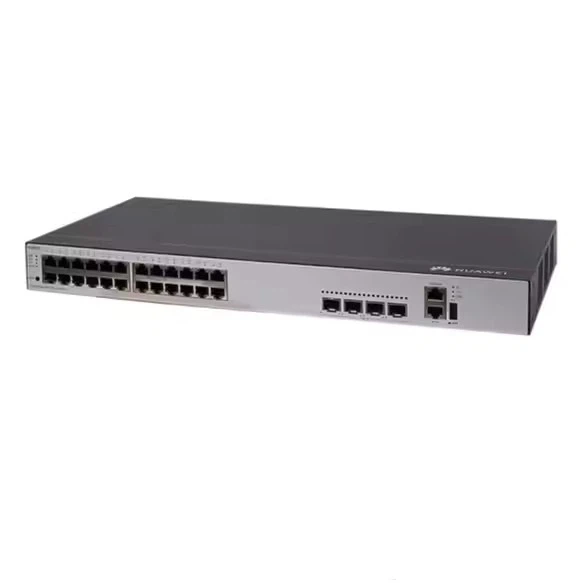
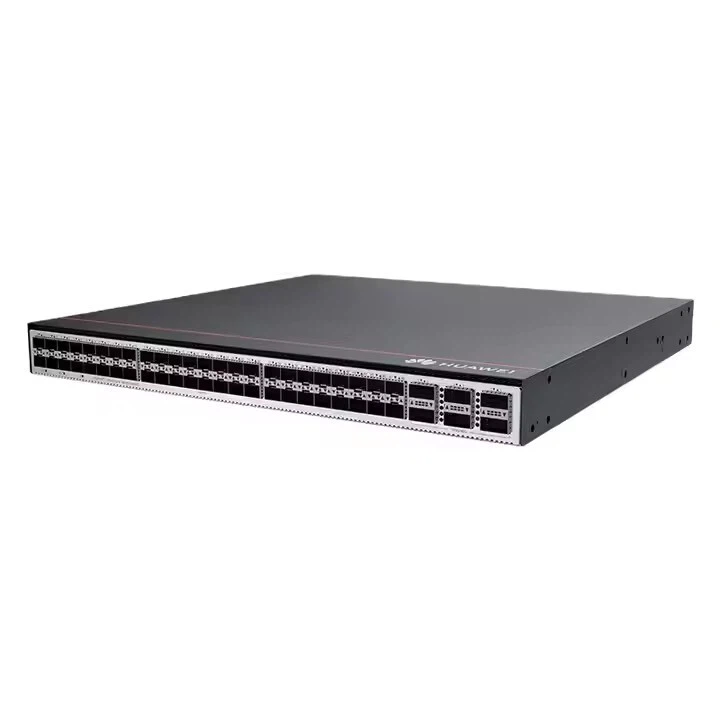
If you're using different Huawei switch models like the Huawei S5731 S24P4X, S6730 Huawei, or Huawei Switch S5735, the basic PIM configuration steps are similar. However, some advanced features or commands might vary slightly depending on the switch model and its software version.
Troubleshooting
If you encounter any issues during the PIM configuration or operation, here are some common troubleshooting steps:
- Check interface status: Make sure all the PIM - enabled interfaces are up and running. You can use the
display interfacecommand to check the interface status. - Check RP connectivity: Ensure that the switch can reach the RP. You can use the
pingcommand to test the connectivity. - Check multicast group addresses: Make sure the multicast group addresses you're using are valid and not being used elsewhere in the network.
Conclusion
Configuring PIM on a Huawei switch might seem a bit complex at first, but if you follow the steps outlined above, you should be able to get it up and running smoothly. PIM is a powerful technology that can enhance your network's multicast capabilities.
If you're in the market for a Huawei switch or need more help with PIM configuration, don't hesitate to reach out. We're here to assist you with all your Huawei switch needs and can guide you through the entire process, from selection to configuration and beyond. Let's have a chat about your requirements and see how we can make your network more efficient with Huawei switches!
References
- Huawei Switch User Manuals
- RFC 4601: Protocol Independent Multicast - Sparse Mode (PIM - SM): Protocol Specification (Revised)




