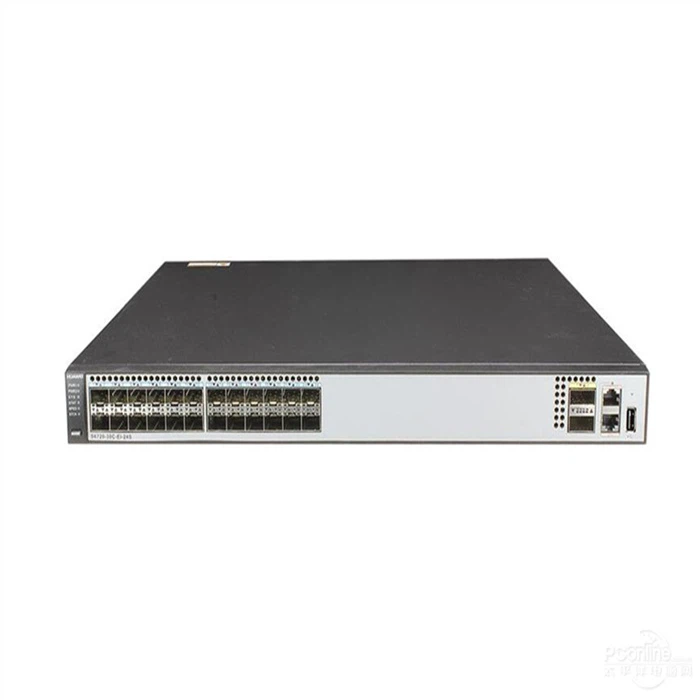
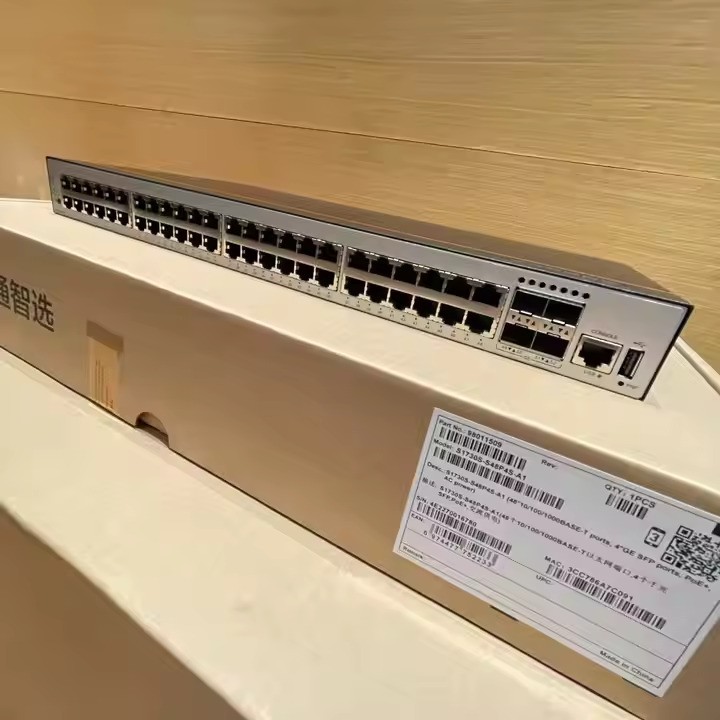
As a reputable Huawei switch supplier, I often receive inquiries from customers about enabling the Spanning-Tree Protocol (STP) on Huawei switches. STP is a crucial technology that helps prevent network loops in Ethernet networks by creating a loop-free logical topology. In this blog post, I'll guide you through the process of enabling STP on various Huawei switches, including the Huawei S6720 30C EI 24S AC, Huawei Switch S6730, and Huawei S1730.
Understanding the Spanning-Tree Protocol
Before diving into the configuration process, it's essential to understand the basics of STP. STP is a network protocol designed to prevent loops in a network topology. In a network with redundant links, loops can cause broadcast storms, multiple frame copies, and MAC address table instability. STP solves these problems by blocking certain ports in the network to create a loop-free topology.
There are different versions of STP, including the original IEEE 802.1D STP, Rapid Spanning Tree Protocol (RSTP, IEEE 802.1w), and Multiple Spanning Tree Protocol (MSTP, IEEE 802.1s). Huawei switches support all these versions, and you can choose the one that best suits your network requirements.
Prerequisites
- Access to the Switch: You need to have access to the command-line interface (CLI) of the Huawei switch. You can use a console cable or Telnet/SSH to connect to the switch.
- Administrative Privileges: You should have administrative privileges to configure the switch.
Enabling STP on Huawei Switches
Step 1: Log in to the Switch
Connect to the switch using a console cable or Telnet/SSH. Enter the username and password to log in to the switch. Once logged in, you'll be in the user view.
<Huawei>
Step 2: Enter System View
To configure the switch, you need to enter the system view. Use the following command:
<Huawei> system-view
[Huawei]
Step 3: Enable STP Globally
In the system view, use the following command to enable STP globally on the switch:
[Huawei] stp enable
This command enables the default STP version (usually MSTP) on the switch. If you want to enable a specific version of STP, you can use the following commands:
- Enable RSTP:
[Huawei] stp mode rstp
- Enable MSTP:
[Huawei] stp mode mstp
Step 4: Configure STP Parameters (Optional)
You can configure various STP parameters, such as the bridge priority, port priority, and path cost. Here are some examples:
- Set the Bridge Priority:
The bridge priority determines which switch becomes the root bridge in the STP topology. The lower the priority, the more likely the switch is to become the root bridge. The default bridge priority is 32768. You can set the bridge priority using the following command:
[Huawei] stp priority 4096
- Set the Port Priority:
The port priority determines the port's role in the STP topology. The lower the port priority, the more likely the port is to be in the forwarding state. The default port priority is 128. You can set the port priority using the following command:
[Huawei-Ethernet0/0/1] stp port priority 64
- Set the Path Cost:
The path cost is used to calculate the shortest path to the root bridge. You can set the path cost using the following command:
[Huawei-Ethernet0/0/1] stp pathcost 100
Step 5: Save the Configuration
After configuring STP, it's important to save the configuration to prevent data loss in case of a power outage or restart. Use the following command to save the configuration:
[Huawei] save
Verifying STP Configuration
You can verify the STP configuration using the following commands:
- Display STP Information:
[Huawei] display stp
This command displays the STP status, root bridge information, and port roles and states.
- Display STP Interface Information:
[Huawei] display stp interface Ethernet0/0/1
This command displays the STP information for a specific interface.
Troubleshooting STP Issues
If you encounter issues with STP, here are some common troubleshooting steps:
-
Check the Root Bridge:
Ensure that the root bridge is correctly configured and is the desired switch in the network. You can use thedisplay stpcommand to check the root bridge information. -
Check Port Roles and States:
Use thedisplay stp interfacecommand to check the port roles and states. Make sure that the ports are in the correct state (forwarding, blocking, etc.). -
Check STP Version Compatibility:
Ensure that all switches in the network are using the same STP version. Incompatible STP versions can cause issues in the network.
Conclusion
Enabling STP on Huawei switches is a straightforward process that can help prevent network loops and ensure network stability. By following the steps outlined in this blog post, you can easily configure STP on your Huawei switches, including the Huawei S6720 30C EI 24S AC, Huawei Switch S6730, and Huawei S1730.
If you have any questions or need further assistance with configuring STP on Huawei switches, or if you're interested in purchasing Huawei switches for your network, please feel free to contact us for procurement discussions. We're here to help you build a reliable and efficient network.
References
- Huawei Switch Configuration Guide
- IEEE 802.1D, 802.1w, and 802.1s Standards