

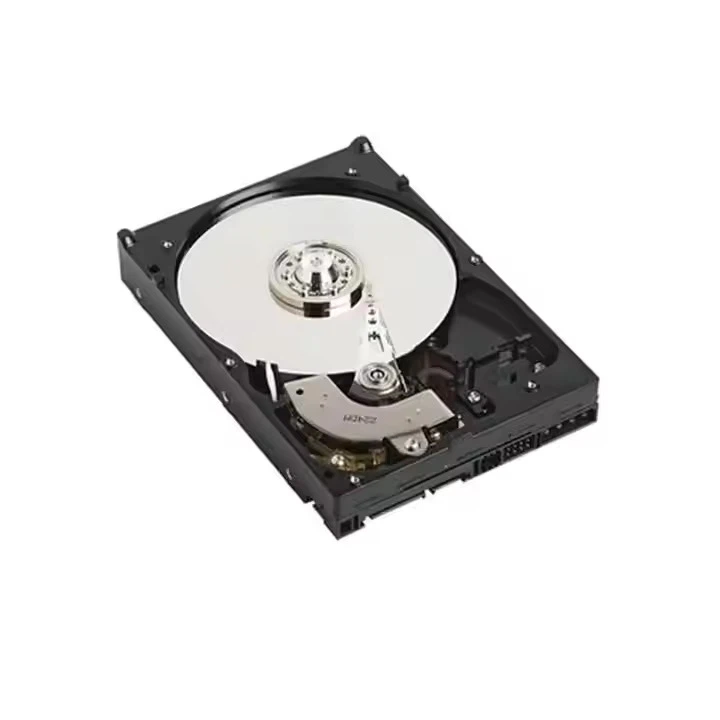
Hey there! As a supplier of 22TB HDDs, I often get asked about how to format these massive storage devices. It's not as tricky as it might seem at first, but there are some key steps and things to keep in mind. So, let's dive right in and explore the process of formatting a 22TB HDD.
First off, before you start formatting, it's crucial to back up any important data on the drive. Formatting will wipe out everything on the HDD, so you don't want to lose all your precious files. Once you've got your data safely stored elsewhere, you're ready to move forward.
The first choice you'll face is the file system. There are a few popular options, and each has its own pros and cons. One of the most common file systems is NTFS (New Technology File System). It's widely used on Windows computers and offers great features like support for large files, file permissions, and data encryption. If you're mainly using your 22TB HDD with a Windows system, NTFS is a solid choice.
Another option is exFAT (Extended File Allocation Table). It's a more universal file system that works well across different operating systems, including Windows, macOS, and Linux. ExFAT is great if you need to share the drive between multiple devices or operating systems. It also supports large files, which is essential for a 22TB HDD.
Now, let's get into the actual formatting process. The steps can vary depending on your operating system, so I'll break it down for the most common ones.
Formatting on Windows
- Connect your 22TB HDD to your Windows computer. You can use a USB cable if it's an external drive or connect it internally if it's a desktop computer.
- Open "Disk Management." You can do this by pressing the Windows key + R, typing "diskmgmt.msc," and hitting Enter.
- In Disk Management, you'll see a list of all your drives. Find your 22TB HDD. It might be listed as "Unallocated" if it's a brand - new drive.
- Right - click on the unallocated space of the 22TB HDD and select "New Simple Volume."
- Follow the wizard. On the "File System" step, choose either NTFS or exFAT based on your needs. You can also set the volume label (a name for your drive).
- Once you've made your selections, click "Finish." Windows will then format the drive, which might take a while depending on the speed of your HDD.
Formatting on macOS
- Connect your 22TB HDD to your Mac. If it's an external drive, use a compatible cable.
- Open "Disk Utility." You can find it in the "Utilities" folder within the "Applications" folder.
- In Disk Utility, select your 22TB HDD from the list on the left - hand side.
- Click the "Erase" button at the top of the window.
- In the "Format" dropdown menu, you have a few choices. "APFS" (Apple File System) is the default for modern Macs, but it's mainly for internal Mac drives. For an external 22TB HDD, "ExFAT" is a better option if you want cross - compatibility.
- Give your drive a name and click "Erase." The formatting process will start and may take some time.
Formatting on Linux
- Connect the 22TB HDD to your Linux machine.
- Open a terminal. You can usually find it in your applications menu.
- Use the
fdiskorgdiskutility to create a new partition table on the drive. For example, to usegdisk, you can run the commandsudo gdisk /dev/sdX(replacesdXwith the actual device name of your 22TB HDD, which you can find by runninglsblk). - Follow the prompts in
gdiskto create a new partition. You can usually just use the default settings to create a single partition that fills the entire drive. - After creating the partition, format it using the appropriate file system. For NTFS, you can use the
mkfs.ntfscommand. For exFAT, usemkfs.exfat. For example, if your partition is/dev/sdX1, you can format it to exFAT with the commandsudo mkfs.exfat /dev/sdX1.
Now, you might be wondering about the performance of a 22TB HDD. These large - capacity drives are great for storing huge amounts of data, like video libraries, backups, and large databases. But they might not be as fast as some smaller, more high - performance drives. If you need faster access to your data, you might want to consider using a 22TB HDD in combination with a smaller, faster SSD (Solid - State Drive).
If you're in the market for other HDD sizes, we also offer Dell HDD 8TB, 16TB HDD, and Dell HDD 10TB. These drives are great for different storage needs, whether you're a home user or a business.
If you're interested in purchasing our 22TB HDDs or other storage solutions, we're here to help. We can provide you with more information about the drives, their performance, and how they can fit into your specific setup. Just reach out to us for a procurement discussion, and we'll be more than happy to work with you to find the best storage solution for your needs.
References
- Microsoft Support: Information on formatting drives in Windows.
- Apple Support: Details about formatting drives in macOS.
- Linux Documentation Project: Guides on disk management and formatting in Linux.