


Hey there! As an HDD supplier, I often get asked about how to format an HDD. It's a crucial process that can sometimes seem a bit daunting, but don't worry – I'm here to break it down for you in a super easy way.
Why Format an HDD?
First off, let's talk about why you'd want to format an HDD in the first place. There are a few good reasons. Maybe you've just bought a brand - new HDD, and it's unformatted straight out of the box. Formatting it will make it usable with your computer. Or perhaps you're repurposing an old HDD and want to wipe all the existing data clean. Formatting is like giving your HDD a fresh start. It can also help fix some minor issues like bad sectors or file system errors.
Types of HDD Formats
There are a couple of main file systems you can use when formatting an HDD: NTFS and FAT32.
NTFS (New Technology File System)
This is the default file system for Windows operating systems. It's great because it supports large file sizes (up to 16 exabytes!) and has built - in security features like file and folder permissions. If you're using your HDD mainly with Windows and need to store large files, NTFS is the way to go. You can check out our 16TB HDD, which works perfectly with NTFS formatting.
FAT32 (File Allocation Table 32)
FAT32 is an older file system that's more compatible across different operating systems. It can be used with Windows, Mac, and some Linux distributions. However, it has a limitation on file size – the maximum file size it can handle is 4GB. So, if you plan to transfer files larger than 4GB between different systems, FAT32 might not be the best choice. But if you're dealing with smaller files and need cross - compatibility, it's a solid option.
Formatting an HDD on Windows
Formatting an HDD on Windows is a pretty straightforward process. Here's how you can do it:
- Connect the HDD: First, make sure your HDD is properly connected to your computer. You can use a SATA cable if it's an internal HDD or a USB cable if it's an external one.
- Open Disk Management: You can do this by right - clicking on the "This PC" icon on your desktop and selecting "Manage". Then, click on "Disk Management" in the left - hand menu.
- Locate the HDD: In the Disk Management window, find your HDD. It will be listed under the "Disk" section.
- Format the HDD: Right - click on the unallocated space or the existing partition on the HDD and select "Format". In the Format dialog box, you can choose the file system (NTFS or FAT32), give the volume a label (a name for your HDD), and set other options like allocation unit size. Once you're happy with the settings, click "OK". Windows will then start the formatting process, which might take a few minutes depending on the size of the HDD. For example, our Dell HDD 8TB might take a bit longer to format compared to a smaller one.
Formatting an HDD on Mac
If you're using a Mac, the process is a bit different but still easy. Here's what you need to do:
- Connect the HDD: Just like on Windows, connect your HDD to your Mac using the appropriate cable.
- Open Disk Utility: You can find Disk Utility in the Applications > Utilities folder.
- Select the HDD: In Disk Utility, select your HDD from the list on the left - hand side.
- Format the HDD: Click on the "Erase" button at the top of the Disk Utility window. In the Erase dialog box, you can choose the format (like Mac OS Extended for Mac - only use or MS - DOS (FAT) for cross - compatibility). Give the HDD a name and click "Erase". The Mac will then format the HDD for you. Our HDD 22TB can be formatted on a Mac following these steps.
Precautions Before Formatting
Before you start formatting your HDD, there are a few things you should keep in mind:
- Backup Your Data: Formatting will erase all the data on the HDD. So, make sure you've backed up any important files to another location, like an external hard drive or a cloud storage service.
- Check for Errors: You can run a disk check utility on your HDD to look for and fix any errors before formatting. On Windows, you can do this by right - clicking on the HDD in "This PC" and selecting "Properties". Then, go to the "Tools" tab and click "Check". On Mac, you can use the First Aid feature in Disk Utility.
Advanced Formatting Options
If you're a more advanced user, you might want to look into some additional formatting options. For example, you can perform a low - level format. This is a more thorough way of formatting an HDD that erases all the data and prepares the disk at a very basic level. However, it's a time - consuming process and usually not necessary for most users.
Another option is to create multiple partitions on your HDD. This can be useful if you want to separate different types of data or use different file systems on the same HDD. You can do this using the Disk Management tool on Windows or Disk Utility on Mac.

Conclusion
Formatting an HDD is an important skill to have, whether you're a casual user or a tech enthusiast. By following the steps I've outlined above, you can easily format your HDD on both Windows and Mac systems. Remember to choose the right file system based on your needs and always back up your data before formatting.
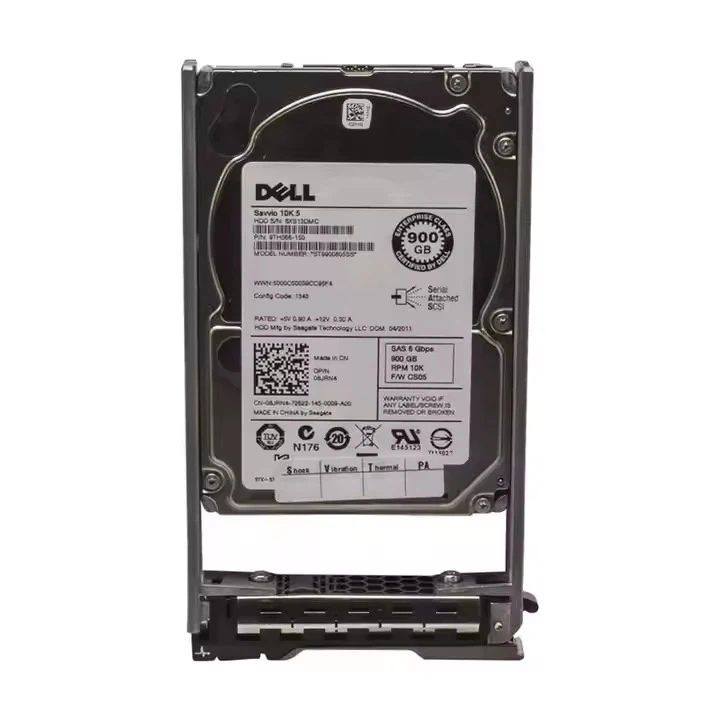
If you're in the market for a new HDD, we've got a great selection of high - quality drives, including the Dell HDD 8TB, HDD 22TB, and 16TB HDD. If you have any questions about our products or need more information on formatting, feel free to reach out to us for a procurement discussion. We're here to help you find the perfect HDD for your needs.
References
- Microsoft Support: Disk Management in Windows
- Apple Support: Disk Utility on Mac
- General knowledge about HDDs and file systems from industry experience.




