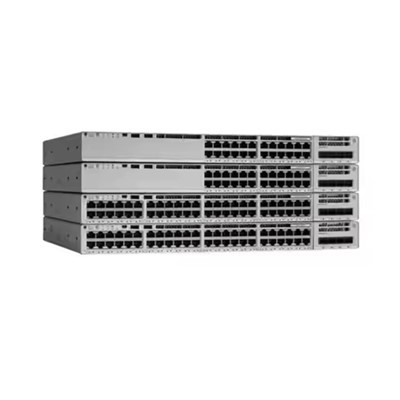


Hey there, tech enthusiasts! If you're looking to boost your computer's storage capacity, installing a new hard disk drive (HDD) is a great way to go. As an HDD supplier, I've helped many folks through this process, and I'm here to share my tips and tricks to make it a breeze.
Why Install a New HDD?
First off, let's talk about why you might want to install a new HDD. Maybe your current drive is running out of space, or you need more storage for your ever-growing collection of photos, videos, and games. Or perhaps you're building a new computer from scratch and want to make sure you have plenty of room for all your data. Whatever the reason, adding an HDD is a cost-effective way to increase your storage capacity without having to buy a whole new computer.
What You'll Need
Before you get started, you'll need to gather a few tools and supplies. Here's what you'll need:
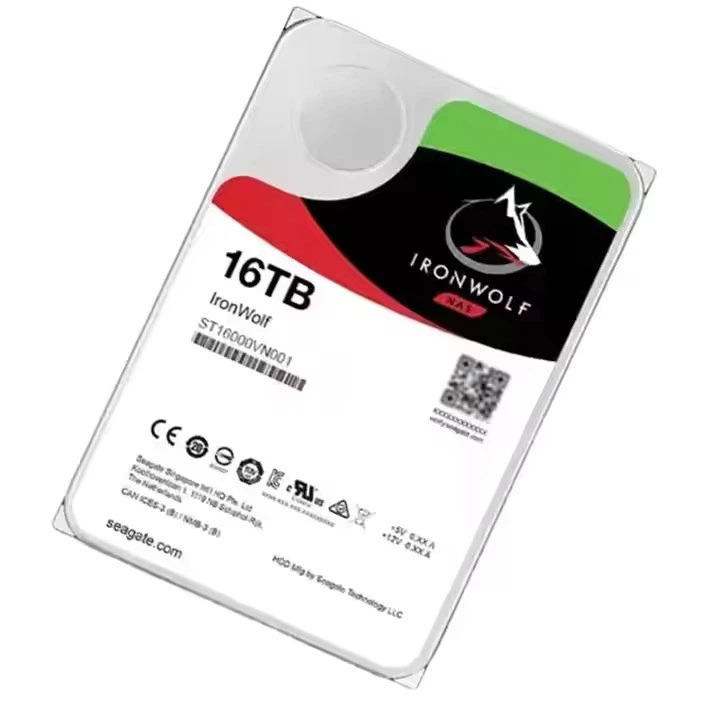
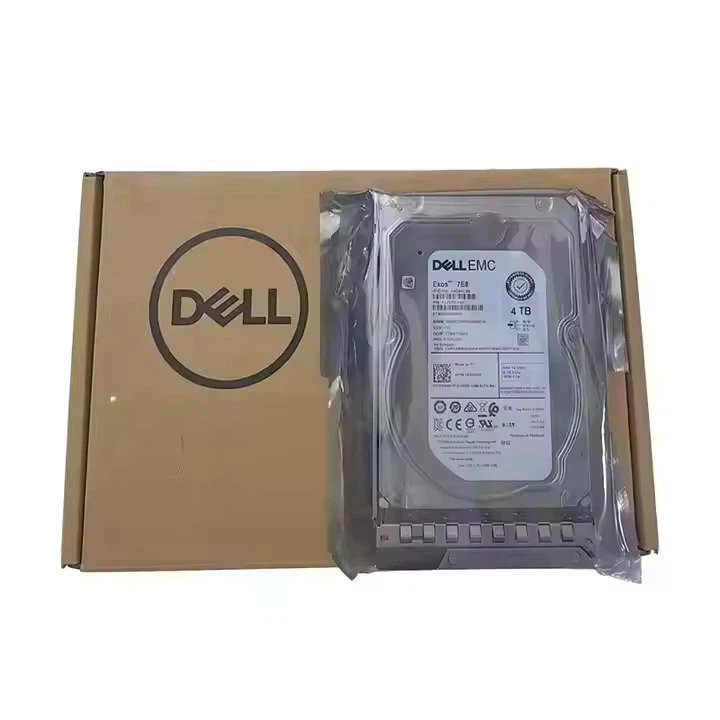
- A new HDD: You can choose from a variety of sizes and brands, depending on your needs and budget. Check out our Dell HDD 8TB, 16TB HDD, or HDD 22TB options for some great choices.
- A Phillips head screwdriver: You'll need this to open your computer case and attach the HDD.
- A SATA cable: This is used to connect the HDD to your computer's motherboard.
- A power cable: You'll need this to provide power to the HDD.
Step-by-Step Guide
Now that you have everything you need, let's get started with the installation process. Here's a step-by-step guide to help you through it:
Step 1: Turn off your computer and unplug it from the power source.
This is an important safety step to prevent any electrical shocks or damage to your computer.
Step 2: Open your computer case.
Use your Phillips head screwdriver to remove the screws on the back of your computer case. Slide the side panel off to expose the inside of your computer.
Step 3: Locate an available drive bay.
Most computers have one or more empty drive bays where you can install your new HDD. Look for a bay that's the right size for your HDD.
Step 4: Mount the HDD.
Place the HDD in the drive bay and align it with the mounting holes. Use your screwdriver to attach the HDD to the drive bay using the screws provided.
Step 5: Connect the SATA cable.
Locate the SATA port on your motherboard and connect one end of the SATA cable to it. Then, connect the other end of the cable to the SATA port on the HDD.
Step 6: Connect the power cable.
Locate the power supply unit (PSU) in your computer and find an available SATA power connector. Connect the power cable to the HDD.
Step 7: Close your computer case.
Slide the side panel back on and use your screwdriver to reattach the screws.
Step 8: Turn on your computer.
Plug your computer back into the power source and turn it on. Your computer should automatically detect the new HDD.
Step 9: Format the HDD.
Once your computer has detected the new HDD, you'll need to format it before you can use it. To do this, open the Disk Management tool in Windows. Right-click on the new HDD and select "Format." Follow the prompts to format the drive.
Troubleshooting Tips
If you run into any problems during the installation process, here are a few troubleshooting tips to help you out:
- Check the connections: Make sure all the cables are properly connected to the HDD and the motherboard.
- Check the BIOS settings: Sometimes, your computer's BIOS settings may need to be adjusted to recognize the new HDD. Check your computer's manual for instructions on how to access and adjust the BIOS settings.
- Check for driver updates: Make sure your computer has the latest drivers installed for the HDD. You can usually download the latest drivers from the manufacturer's website.
Conclusion
Installing a new HDD is a relatively simple process that can greatly increase your computer's storage capacity. By following these steps and using the right tools and supplies, you can have your new HDD up and running in no time. If you have any questions or need further assistance, don't hesitate to contact us. We're here to help you get the most out of your HDD.
If you're interested in purchasing an HDD for your computer, we'd love to hear from you. Our team of experts can help you choose the right HDD for your needs and budget. Contact us today to start the procurement process and take your computer's storage to the next level.
References
- Computer hardware manuals
- Online tech forums and communities