


Hard disk drives (HDDs) are crucial components in modern computing, storing vast amounts of data for personal and professional use. However, like any mechanical device, HDDs can experience damage over time. As an HDD supplier, I understand the importance of having a reliable and functional storage solution. In this blog post, I'll share some insights on how to repair a damaged HDD, which can save you from potential data loss and the cost of replacing the drive.
Understanding the Types of HDD Damage
Before attempting any repairs, it's essential to understand the different types of HDD damage. There are generally two categories: physical and logical.
Physical Damage
Physical damage occurs when there are issues with the HDD's hardware components. This can include problems with the read - write heads, the spindle motor, or the platter surface. Signs of physical damage may include strange clicking or grinding noises coming from the drive, the drive not spinning up, or the computer not detecting the HDD.
Logical Damage
Logical damage, on the other hand, involves issues with the file system or the data stored on the drive. This can be caused by software glitches, power outages, or improper shutdowns. Symptoms of logical damage may include the inability to access certain files or folders, error messages when trying to read or write data, or the drive appearing as unformatted in the operating system.
Tools and Precautions
Before starting the repair process, gather the necessary tools. For physical repairs, you may need a set of precision screwdrivers, an anti - static wrist strap to prevent electrostatic discharge (ESD), and a clean, dust - free workspace. For logical repairs, you'll need a computer with a working operating system and some diagnostic and repair software.
It's also important to take precautions. ESD can damage the sensitive electronic components of the HDD, so always wear an anti - static wrist strap when handling the drive. Additionally, if you're dealing with a physically damaged drive, be aware that opening the drive in a non - cleanroom environment can introduce dust particles, which may further damage the drive.
Repairing Logical Damage
Logical damage is often easier to repair than physical damage. Here are some steps you can take:
Use Built - in Operating System Tools
Most operating systems come with built - in tools for disk repair. For example, in Windows, you can use the "Check Disk" utility. To do this, right - click on the drive in "My Computer" or "This PC," select "Properties," go to the "Tools" tab, and click "Check" under "Error checking." The system will then scan the drive for errors and attempt to fix them.
In macOS, you can use the "Disk Utility" application. Open "Disk Utility," select the drive, and click "First Aid." The utility will scan and repair any file system errors.
Use Third - Party Diagnostic Software
There are also many third - party diagnostic and repair software available. One popular option is [name of well - known software]. These programs can often detect and repair more complex logical errors than the built - in tools. Download and install the software according to the manufacturer's instructions, and then run a full scan of the damaged drive.
Repairing Physical Damage
Repairing physical damage is more challenging and may require professional expertise. However, there are some basic steps you can take:
Check the Connections
Sometimes, the problem may be as simple as a loose connection. Power off the computer, unplug the HDD, and check the SATA or IDE cables connecting the drive to the motherboard and the power supply. Make sure they are securely plugged in. If the cables are damaged, replace them with new ones.
Replace the PCB (Printed Circuit Board)
If the HDD's printed circuit board is damaged, it may be possible to replace it. You can purchase a compatible PCB from a reputable supplier. To replace the PCB, first, power off the computer and unplug the drive. Remove the screws holding the PCB in place, carefully disconnect any connectors, and then replace the old PCB with the new one. Make sure to match the connectors correctly.
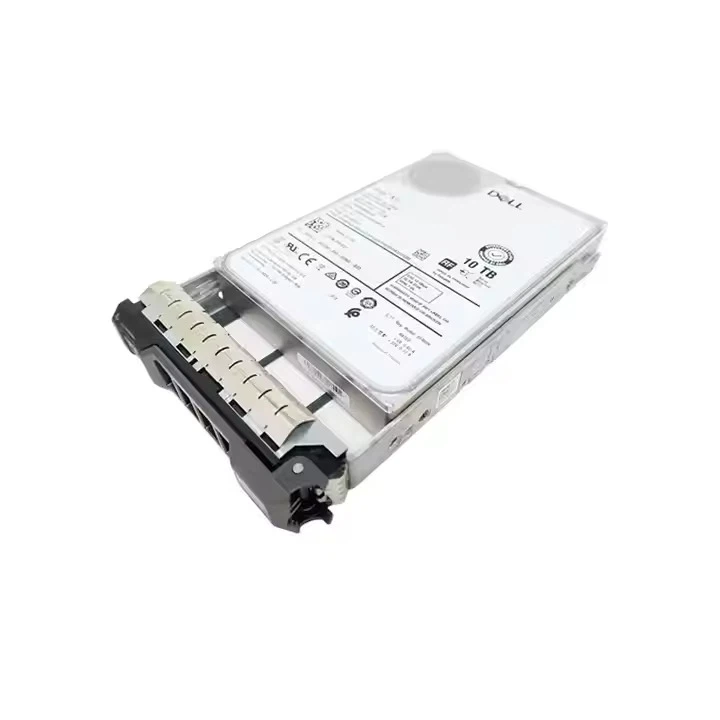
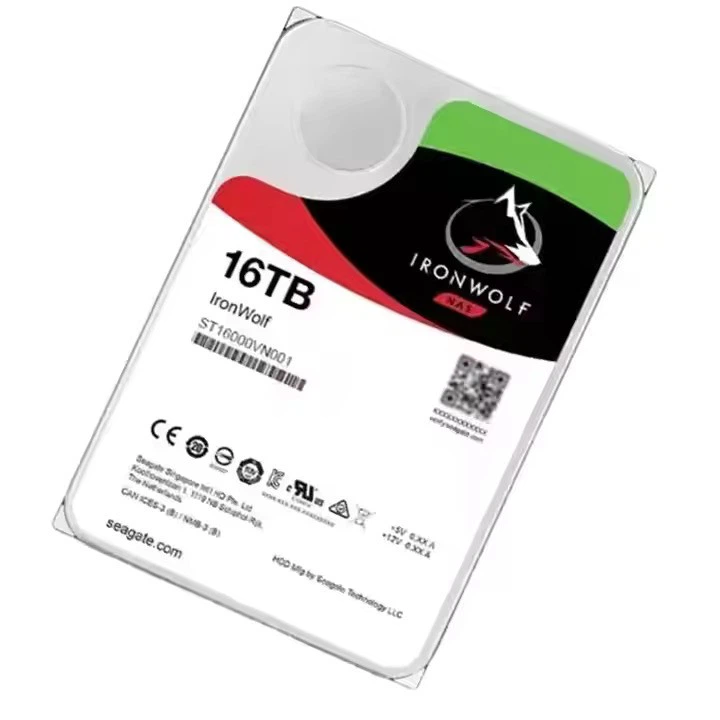
However, it's important to note that not all PCBs are interchangeable, and replacing the PCB may not always solve the problem. For example, if the damage is on the platter or the read - write heads, replacing the PCB will not fix the issue.
Seek Professional Help
If you're not comfortable performing physical repairs or if the damage seems severe, it's best to seek professional help. There are specialized data recovery and HDD repair services that have the expertise and equipment to handle physically damaged drives. They can often recover data from severely damaged drives, although this can be expensive.
Preventing Future HDD Damage
Once you've repaired the damaged HDD, it's important to take steps to prevent future damage. Here are some tips:
- Use a UPS (Uninterruptible Power Supply): A UPS can protect your HDD from power outages and voltage fluctuations, which can cause logical and physical damage.
- Keep the Computer Cool: Overheating can damage the HDD. Make sure your computer has proper ventilation and that the cooling fans are working correctly.
- Regularly Back Up Your Data: No matter how well you maintain your HDD, there's always a risk of failure. Regularly backing up your data to an external drive or a cloud storage service can ensure that you don't lose important files.
Conclusion
Repairing a damaged HDD can be a complex process, but with the right knowledge and tools, it's often possible to fix logical and even some physical issues. As an HDD supplier, I offer a wide range of high - quality HDDs, including the 16TB HDD, Dell HDD 10TB, and Dell HDD 8TB. These drives are designed to provide reliable storage solutions for various needs.
If you're experiencing HDD problems or are interested in purchasing a new HDD, I encourage you to contact me for more information and to discuss your specific requirements. Our team of experts is ready to assist you in finding the best storage solution for your needs.
References
- "Hard Disk Drive Technology and Troubleshooting" by [Author's Name]
- "Data Recovery and HDD Repair: A Comprehensive Guide" by [Author's Name]
- Manufacturer's manuals for various HDD models




