


Hey there! As a supplier of Cisco switches, I often get asked about how to save the configuration on a Cisco switch. It's a crucial step, especially if you want to keep your network settings intact and avoid any headaches down the road. In this blog post, I'll walk you through the process step by step.
First off, let's talk about why saving the configuration is so important. When you make changes to your Cisco switch, like setting up VLANs, configuring interfaces, or adjusting security settings, these changes are initially stored in the running configuration. The running configuration is like the switch's current state of mind—it's what the switch is currently using to operate. But here's the catch: if you reboot the switch or power it off, all those changes in the running configuration will be lost unless you save them to the startup configuration. The startup configuration is like a blueprint that the switch uses to boot up and restore its settings.
Now, let's get into the nitty - gritty of how to save the configuration. There are a couple of different ways to do this, but I'll focus on the most common methods.
Method 1: Using the CLI (Command - Line Interface)
The CLI is a powerful tool for configuring and managing Cisco switches. To save the configuration using the CLI, you'll need to follow these steps:

-
Access the privileged EXEC mode:
First, you need to log in to your switch. If you're already in user EXEC mode, you can enter the privileged EXEC mode by typingenableand then entering your enable password if you have one. You'll know you're in the right mode when you see theSwitch#prompt. -
Save the running configuration to the startup configuration:
Once you're in the privileged EXEC mode, type the commandcopy running - config startup - config. You can also use the shorthand versionwrwhich stands forwrite memory. After you enter the command, the switch will start copying the running configuration to the startup configuration. You'll see some messages on the screen indicating the progress, and once it's done, you'll get a confirmation message like[OK].
Here's what it looks like in action:
Switch> enable
Password: ********
Switch# copy running - config startup - config
Destination filename [startup - config]?
Building configuration...
[OK]
Switch#
Method 2: Using the Web Interface
If you're not a fan of the CLI or you're more comfortable with a graphical interface, you can also save the configuration using the web interface. Here's how:
-
Access the web interface:
First, you need to know the IP address of your switch. Open your web browser and enter the IP address in the address bar. You'll be prompted to enter your username and password. Once you're logged in, you'll see the web - based management interface. -
Navigate to the configuration save option:
The exact location of the option to save the configuration may vary depending on the model of your Cisco switch. Generally, you'll find it under a section like "Configuration Management" or "System Configuration". Look for an option like "Save Configuration" or "Copy Running to Startup". Click on it, and the switch will save the running configuration to the startup configuration.
Different Cisco Switch Models
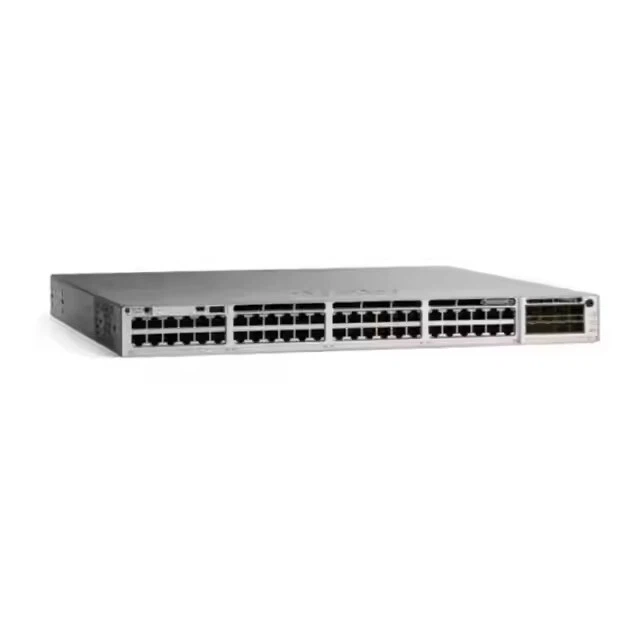
At our company, we offer a wide range of Cisco switch models, each with its own unique features and capabilities. For example, the Switch Cisco C9200 is a great choice for small to medium - sized businesses. It provides high - performance switching with advanced security features. The Switch Cisco C1000 24t 4g L is another popular option. It's compact and cost - effective, making it suitable for branch offices or home networks. And if you need a more enterprise - grade solution, the Switch Cisco Catalyst 9300 is a top - notch choice. It offers high - density ports, advanced analytics, and excellent scalability.
Troubleshooting
Sometimes, you might run into issues when trying to save the configuration. Here are a few common problems and how to fix them:
- Insufficient memory: If your switch doesn't have enough memory to save the configuration, you might get an error message. In this case, you can try deleting any unnecessary files or upgrading the switch's memory if possible.
- File system errors: There could be issues with the file system on the switch where the startup configuration is stored. You can try using commands like
dirto check the file system and see if there are any corrupted files. If necessary, you might need to format the file system, but be careful as this will delete all the files on it.
Conclusion
Saving the configuration on a Cisco switch is an essential task for maintaining a stable and reliable network. Whether you prefer using the CLI or the web interface, it's a relatively straightforward process. And with the wide range of Cisco switch models we offer at our company, you can find the perfect switch to meet your needs.
If you're interested in purchasing Cisco switches or have any questions about configuration management, feel free to reach out to us. We're here to help you make the most of your network infrastructure. Don't hesitate to start a conversation with us to discuss your requirements and get the best solutions for your business.
References
- Cisco Systems, Inc. Cisco Switch Configuration Guides.
- Various online Cisco networking communities and forums.




