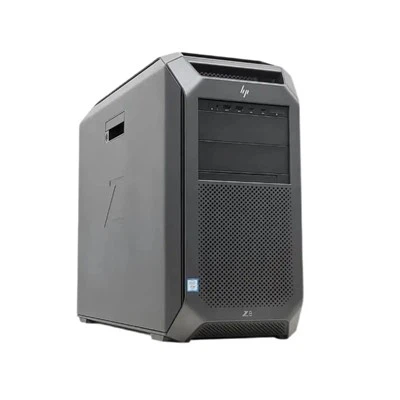
As an HP server supplier, I've encountered numerous boot failure issues with HP servers over the years. Boot failures can be incredibly frustrating, as they prevent users from accessing their systems and can lead to significant downtime. In this blog post, I'll share some common causes of boot failures on HP servers and provide step-by-step troubleshooting guides to help you resolve these issues.
Common Causes of Boot Failures on HP Servers
1. Hardware Issues
- Faulty Hard Drives: One of the most common causes of boot failures is a faulty hard drive. If the hard drive is damaged or has bad sectors, the server may not be able to read the operating system files, resulting in a boot failure.
- Memory Problems: Another hardware issue that can cause boot failures is faulty memory modules. If the memory is not properly seated or is defective, the server may not be able to initialize the system, leading to a boot error.
- Power Supply Issues: A failing power supply can also cause boot failures. If the power supply is not providing enough power to the server components, the system may not boot properly.
2. Software Issues
- Operating System Corruption: If the operating system files are corrupted, the server may not be able to boot. This can happen due to a variety of reasons, such as improper shutdowns, malware infections, or disk errors.
- BIOS or Firmware Issues: Outdated or corrupted BIOS or firmware can also cause boot failures. The BIOS is responsible for initializing the hardware components during the boot process, and if it is not functioning correctly, the server may not boot.
- Driver Issues: Incompatible or outdated drivers can also cause boot failures. If the drivers for the hardware components are not working properly, the server may not be able to recognize the devices and boot the operating system.
Troubleshooting Boot Failures on HP Servers
Step 1: Check the Hardware
- Power On the Server: First, make sure that the server is properly plugged in and powered on. Check the power supply and make sure that it is providing enough power to the server components.
- Check the Hard Drives: Use the HP Smart Array Configuration Utility or the HP Smart Storage Administrator to check the status of the hard drives. Look for any errors or warnings indicating that a hard drive is failing or has bad sectors. If a hard drive is faulty, replace it with a new one.
- Check the Memory Modules: Remove and reinsert the memory modules to make sure that they are properly seated. If possible, test the memory modules using a memory testing tool to check for any errors. If a memory module is defective, replace it with a new one.
Step 2: Check the BIOS or Firmware
- Update the BIOS or Firmware: Visit the HP support website and download the latest BIOS or firmware updates for your server model. Follow the instructions provided by HP to install the updates. Updating the BIOS or firmware can often resolve boot issues caused by outdated or corrupted software.
- Reset the BIOS Settings: If updating the BIOS or firmware does not resolve the issue, try resetting the BIOS settings to their default values. This can often fix configuration issues that may be causing the boot failure.
Step 3: Check the Operating System
- Repair the Operating System: If the operating system is corrupted, you can try repairing it using the Windows Recovery Environment or the Linux Live CD. Follow the instructions provided by the operating system vendor to repair the system.
- Reinstall the Operating System: If repairing the operating system does not work, you may need to reinstall it. Make sure to back up all your important data before reinstalling the operating system.
Step 4: Check the Drivers
- Update the Drivers: Visit the HP support website and download the latest drivers for your server model. Install the drivers and restart the server to see if the boot issue is resolved.
- Remove Incompatible Drivers: If you suspect that a particular driver is causing the boot failure, try removing it from the system. You can do this by using the Device Manager in Windows or the appropriate command-line tools in Linux.
Specific Troubleshooting for Different HP Server Models
HP Proliant DL580 G10
The HP Proliant DL580 G10 is a powerful and reliable server that is widely used in enterprise environments. If you are experiencing boot failures on this server, here are some additional troubleshooting steps:
- Check the iLO Configuration: The Integrated Lights-Out (iLO) management interface on the HP Proliant DL580 G10 can be used to monitor and manage the server remotely. Make sure that the iLO configuration is correct and that there are no errors or warnings indicating a problem with the iLO interface.
- Check the Smart Array Controller: The HP Proliant DL580 G10 uses a Smart Array controller to manage the hard drives. Use the HP Smart Array Configuration Utility or the HP Smart Storage Administrator to check the status of the Smart Array controller and the hard drives. Look for any errors or warnings indicating that the controller is not functioning properly.
Proliant DL360 Gen10 8sff
The Proliant DL360 Gen10 8sff is a compact and efficient server that is ideal for small and medium-sized businesses. If you are experiencing boot failures on this server, here are some additional troubleshooting steps:
- Check the Boot Order: Make sure that the boot order in the BIOS is set correctly. The server should be configured to boot from the hard drive or the appropriate boot device. If the boot order is incorrect, the server may not boot properly.
- Check the Power Supply: The Proliant DL360 Gen10 8sff uses a redundant power supply system. Make sure that both power supplies are functioning properly and that there are no errors or warnings indicating a problem with the power supply.
HPE Proliant DL380 Gen10 Plus 8sff
The HPE Proliant DL380 Gen10 Plus 8sff is a high-performance server that is designed for demanding enterprise applications. If you are experiencing boot failures on this server, here are some additional troubleshooting steps:


- Check the System Event Log: The HPE Proliant DL380 Gen10 Plus 8sff has a system event log that records all the events and errors that occur on the server. Check the system event log for any errors or warnings indicating a problem with the hardware or software components.
- Check the Network Configuration: If the server is configured to boot from the network, make sure that the network configuration is correct. Check the IP address, subnet mask, gateway, and DNS settings to make sure that they are configured correctly.
Conclusion
Boot failures on HP servers can be caused by a variety of hardware and software issues. By following the troubleshooting steps outlined in this blog post, you should be able to identify and resolve most boot issues on your HP server. If you are still experiencing problems after trying these steps, or if you need further assistance, please contact us. As an HP server supplier, we have the expertise and experience to help you with all your HP server needs. Whether you are looking to purchase a new server, upgrade an existing one, or troubleshoot a boot failure, we are here to help. Contact us today to start a procurement discussion and find the best HP server solution for your business.
References
- HP Support Documentation
- HP Server User Manuals
- Windows and Linux Operating System Documentation