

As a dedicated HPE workstation supplier, I've encountered a wide range of common issues that users face with these high - performance machines. Troubleshooting these problems effectively is crucial to ensure the smooth operation of your HPE workstation and to get the most out of your investment. In this blog, I'll share some practical tips on how to troubleshoot common issues with HPE workstations.
1. Power - related Issues
One of the most basic yet frequently encountered problems is power - related. If your HPE workstation fails to power on, the first step is to check the power source. Ensure that the power cord is securely plugged into both the workstation and the electrical outlet. Sometimes, a loose connection can prevent the workstation from receiving power.
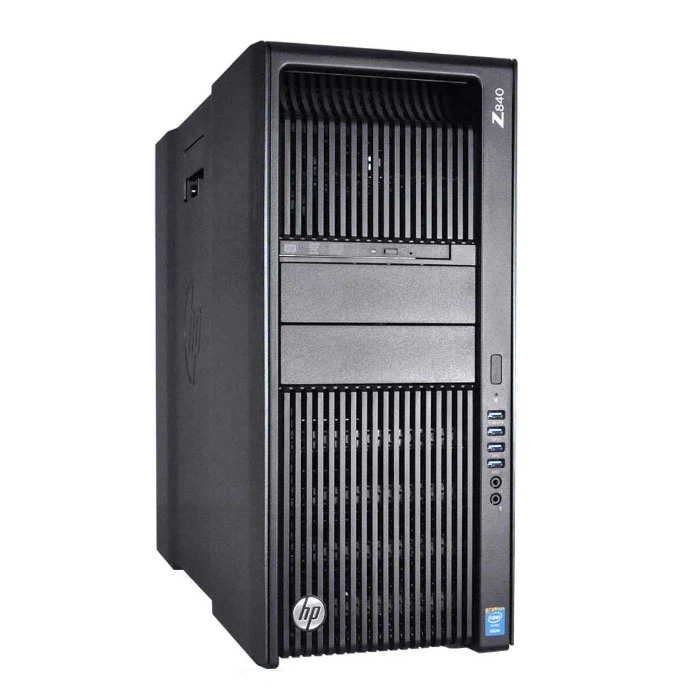
If the power cord seems fine, check the power supply unit (PSU). A faulty PSU can be the culprit. You can test the PSU using a power supply tester, which is a relatively inexpensive tool. If the PSU is indeed faulty, you may need to replace it. For some models like the Z 840, the PSU replacement process can be a bit technical, so it's advisable to refer to the user manual or seek professional help.

Another power - related issue could be the power button. If the power button is unresponsive, it might be due to physical damage or a software glitch. Try pressing the power button firmly and hold it for a few seconds. If that doesn't work, you can try a hard reset by unplugging the workstation from the power source, holding down the power button for 15 - 20 seconds, and then plugging it back in.
2. Display Problems
Display issues are also quite common. If you're experiencing a blank screen, start by checking the connections between the workstation and the monitor. Ensure that the video cable is properly plugged into both the graphics card and the monitor. Try using a different video cable or port to rule out cable or port issues.
If the monitor is not detecting the workstation, check the monitor settings. Make sure the monitor is set to the correct input source. Sometimes, the monitor may default to a different input, causing the display problem.
For HPE workstations with multiple graphics cards, ensure that the graphics cards are properly installed and configured. You may need to update the graphics drivers to the latest version. Outdated drivers can cause display artifacts, color issues, or even a blank screen. You can usually download the latest drivers from the HPE official website.
3. Overheating
Overheating is a serious issue that can lead to system instability and hardware damage. If your HPE workstation is running hot, the first thing to check is the cooling system. Make sure the fans are working properly. You can listen for any unusual noises coming from the fans, which may indicate a problem.
Clean the dust from the fans and the heatsinks regularly. Dust accumulation can block the airflow and cause the system to overheat. You can use compressed air to blow out the dust from the vents and components.
If the overheating problem persists, it could be due to a faulty fan or a malfunctioning cooling system. In such cases, you may need to replace the fan or have the cooling system serviced. For some high - end workstations like the HP Z1 G9 Workstation, the cooling system is more complex, and professional assistance may be required.
4. Software and Operating System Issues
Software and operating system problems can cause a variety of issues, such as slow performance, crashes, and error messages. If your HPE workstation is running slowly, start by checking the system resources. Open the Task Manager (on Windows) or Activity Monitor (on macOS) to see which processes are using the most CPU, memory, or disk space.
Uninstall any unnecessary programs or applications that are taking up too much system resources. You can also perform a disk cleanup to free up disk space.
If you're experiencing frequent crashes or error messages, it could be due to software conflicts or corrupted system files. Try running a system scan using built - in tools like Windows Defender or third - party antivirus software. You can also use the System File Checker (SFC) tool on Windows to scan and repair corrupted system files.
For operating system issues, it's important to keep your operating system up - to - date. Microsoft and Apple regularly release updates that include security patches and performance improvements. Installing these updates can often resolve many software - related issues.
5. Hardware Compatibility Issues
When upgrading or adding new hardware to your HPE workstation, you may encounter compatibility issues. For example, if you're trying to upgrade the RAM, make sure the new RAM modules are compatible with your workstation's motherboard. You can refer to the motherboard's manual or the HPE official website for compatibility information.
If you're having trouble with a newly added device, such as a USB drive or a graphics card, check the device drivers. Sometimes, the drivers need to be updated to work properly with your workstation. You can usually find the drivers on the manufacturer's website.
For those interested in upgrading their HPE workstations, the HP Z420 Upgrades page provides detailed information on compatible hardware upgrades.
6. Network Connectivity Issues
If your HPE workstation is having trouble connecting to the network, start by checking the network cables. Ensure that the Ethernet cable is properly plugged into the network port on the workstation and the router. Try using a different cable or port to rule out cable or port issues.
If you're using Wi - Fi, make sure the Wi - Fi adapter is enabled and properly configured. Check the Wi - Fi settings on your workstation and make sure you're connecting to the correct network. You can also try restarting the router and the workstation to reset the network connection.
If the network connectivity problem persists, it could be due to a network configuration issue or a problem with the network service provider. Contact your network administrator or service provider for further assistance.
Conclusion
Troubleshooting common issues with HPE workstations requires a systematic approach. By following the tips outlined in this blog, you can effectively diagnose and resolve many of the problems that you may encounter. However, if you're still having trouble or if the issue is beyond your expertise, don't hesitate to reach out for professional help.
As an HPE workstation supplier, we're committed to providing high - quality products and excellent customer service. If you're in the market for an HPE workstation or need assistance with troubleshooting, we're here to help. Contact us to discuss your requirements and explore the best solutions for your business.
References
- HPE Workstation User Manuals
- HPE Official Website Documentation
- Microsoft and Apple Support Resources for Operating System Troubleshooting