Hey there! So, you're thinking about upgrading to a 16TB HDD, huh? Well, you've come to the right place. I'm a supplier of 16TB HDDs, and I'm gonna walk you through the steps to make this upgrade as smooth as possible.
Step 1: Assess Your Needs
Before you go all in and buy a 16TB HDD, it's important to figure out if you really need that much storage. Think about what you'll be using the extra space for. Are you a gamer who wants to store a ton of games? Maybe you're a content creator with a massive library of videos and photos. Or perhaps you're just someone who likes to keep a backup of all their important files.
If you're currently using a Dell HDD 8TB or Dell HDD 10TB and finding that you're running out of space, then upgrading to a 16TB HDD could be a great move. But if you're only using a small fraction of your current storage, you might want to hold off or consider a smaller upgrade.
Step 2: Check Your Compatibility
Once you've decided that a 16TB HDD is right for you, the next step is to make sure your system can actually support it. Most modern computers and servers should be able to handle a 16TB HDD without any issues, but it's still a good idea to double-check.
First, look at your motherboard. You'll need to make sure it has a compatible SATA or SAS interface. Most motherboards these days come with multiple SATA ports, so chances are you'll be fine. But if you're using an older system, you might need to upgrade your motherboard or add a SATA controller card.
Next, check your operating system. Windows, macOS, and Linux all support large hard drives, but you'll need to make sure you're running a recent version. For example, Windows 10 and later support drives up to 256TB, while macOS Sierra and later support drives up to 9.4ZB (yes, that's zettabytes!).
Step 3: Backup Your Data
Before you start installing your new 16TB HDD, it's crucial to back up all your important data. This includes your documents, photos, videos, music, and any other files that you don't want to lose.
There are several ways to back up your data. You can use an external hard drive, a cloud storage service like Google Drive or Dropbox, or a network-attached storage (NAS) device. Make sure you choose a backup method that's reliable and secure.
Once you've backed up your data, you can rest easy knowing that you won't lose anything if something goes wrong during the installation process.
Step 4: Install the 16TB HDD
Now it's time to install your new 16TB HDD. This process is relatively straightforward, but it does require a bit of technical know-how. If you're not comfortable working inside your computer, you might want to consider having a professional do it for you.

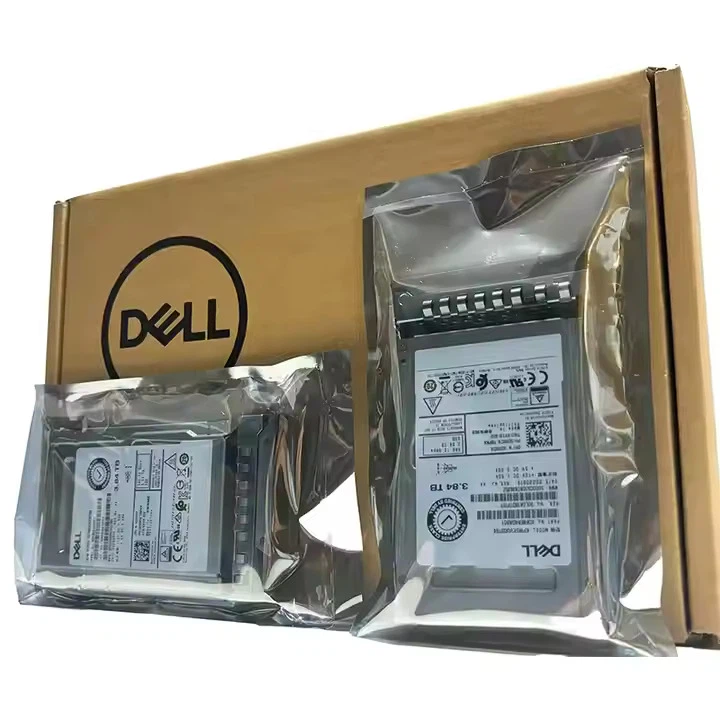
Here's a general overview of the installation process:
- Power off your computer: Before you start working on your computer, make sure it's turned off and unplugged from the power source. This will help prevent any electrical shocks or damage to your components.
- Open your computer case: Use a Phillips head screwdriver to remove the screws from the side panel of your computer case. Once the screws are removed, you should be able to slide the side panel off.
- Locate an available drive bay: Look for an empty drive bay in your computer case. Most cases have multiple drive bays, so you should be able to find one that's suitable for your 16TB HDD.
- Install the HDD: Slide the 16TB HDD into the drive bay and secure it with screws. Make sure the HDD is firmly attached to the drive bay and that there's no movement or rattling.
- Connect the cables: Connect the SATA data cable and power cable to the 16TB HDD. The SATA data cable is usually a thin, flat cable with a small connector on each end. The power cable is a thicker cable with a larger connector.
- Close your computer case: Once you've connected the cables, slide the side panel back onto your computer case and secure it with screws.
- Power on your computer: Plug your computer back into the power source and turn it on. Your computer should automatically detect the new 16TB HDD.
Step 5: Format and Partition the HDD
After you've installed the 16TB HDD, the next step is to format and partition it. Formatting the HDD will erase all the data on it and prepare it for use. Partitioning the HDD will divide it into separate sections, which can be useful for organizing your data.
Here's how to format and partition your 16TB HDD:
- Open Disk Management: On Windows, you can open Disk Management by right-clicking on the Start button and selecting "Disk Management." On macOS, you can open Disk Utility by going to the Applications folder and selecting "Utilities" > "Disk Utility."
- Locate the 16TB HDD: In Disk Management or Disk Utility, you should see the 16TB HDD listed as an unallocated disk.
- Format the HDD: Right-click on the unallocated disk and select "New Simple Volume." Follow the prompts to format the HDD using the NTFS file system (for Windows) or the APFS file system (for macOS).
- Partition the HDD: If you want to partition the HDD, you can do so by right-clicking on the formatted volume and selecting "Shrink Volume." Follow the prompts to create one or more partitions.
Step 6: Transfer Your Data
Once you've formatted and partitioned the 16TB HDD, the final step is to transfer your data from your old hard drive to the new one. You can do this using a file transfer utility like Windows Explorer or Finder, or you can use a third-party data migration tool.
Here's how to transfer your data using Windows Explorer:
- Open Windows Explorer: Click on the Start button and select "File Explorer."
- Locate your old hard drive and the new 16TB HDD: In Windows Explorer, you should see your old hard drive and the new 16TB HDD listed under "This PC."
- Select the files and folders you want to transfer: Navigate to the files and folders on your old hard drive that you want to transfer to the new 16TB HDD.
- Copy the files and folders: Right-click on the selected files and folders and select "Copy."
- Paste the files and folders: Navigate to the new 16TB HDD and right-click on an empty area. Select "Paste" to transfer the files and folders to the new HDD.
Step 7: Test Your New HDD
After you've transferred your data, it's a good idea to test your new 16TB HDD to make sure it's working properly. You can do this by opening some of the files and folders you transferred and making sure they open without any issues.
You can also run a disk check utility to scan the HDD for any errors or bad sectors. On Windows, you can do this by right-clicking on the 16TB HDD in Windows Explorer and selecting "Properties." Then, click on the "Tools" tab and select "Check." On macOS, you can run a disk check using Disk Utility.
Conclusion
Upgrading to a 16TB HDD can be a great way to add more storage to your computer or server. By following these steps, you can make the upgrade process as smooth and painless as possible.
If you have any questions or need further assistance, don't hesitate to reach out. As a 16TB HDD supplier, I'm here to help you make the most of your storage upgrade. Whether you're a small business owner, a content creator, or just someone who needs more space for their personal files, I can provide you with the right 16TB HDD for your needs.
So, what are you waiting for? Contact me today to discuss your storage requirements and get started on your upgrade. I look forward to hearing from you!
References
- Microsoft. (n.d.). How to partition and format a hard drive in Windows. Retrieved from https://support.microsoft.com/en-us/help/4026718/windows-10-how-to-partition-and-format-a-hard-drive
- Apple. (n.d.). Format a storage device in Disk Utility on Mac. Retrieved from https://support.apple.com/en-us/HT201750
- Seagate. (n.d.). How to install an internal hard drive. Retrieved from https://www.seagate.com/support/kb/how-to-install-an-internal-hard-drive-1768/