Adjusting RAM settings in a Dell computer can significantly enhance its performance, allowing for smoother multitasking, faster data processing, and improved overall user experience. As a Dell RAM supplier, I've witnessed firsthand how proper RAM configuration can transform a computer's capabilities. In this blog, I'll guide you through the process of adjusting RAM settings in a Dell computer, from understanding the basics to making advanced adjustments.
Understanding Your Dell Computer's RAM
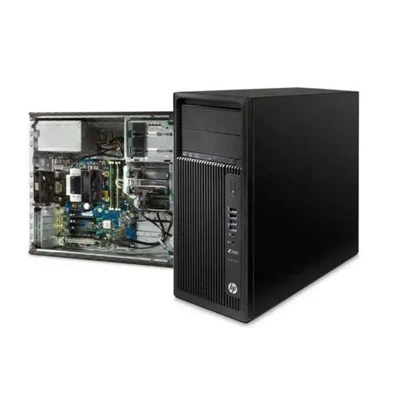
Before you start adjusting RAM settings, it's essential to understand the type and capacity of RAM your Dell computer currently has. You can check this information through the system information in Windows or by physically opening your computer case and examining the RAM modules. Most Dell computers support different types of RAM, such as DDR3, DDR4, and DDR5, each with its own speed and capacity limits.
Upgrading Your RAM
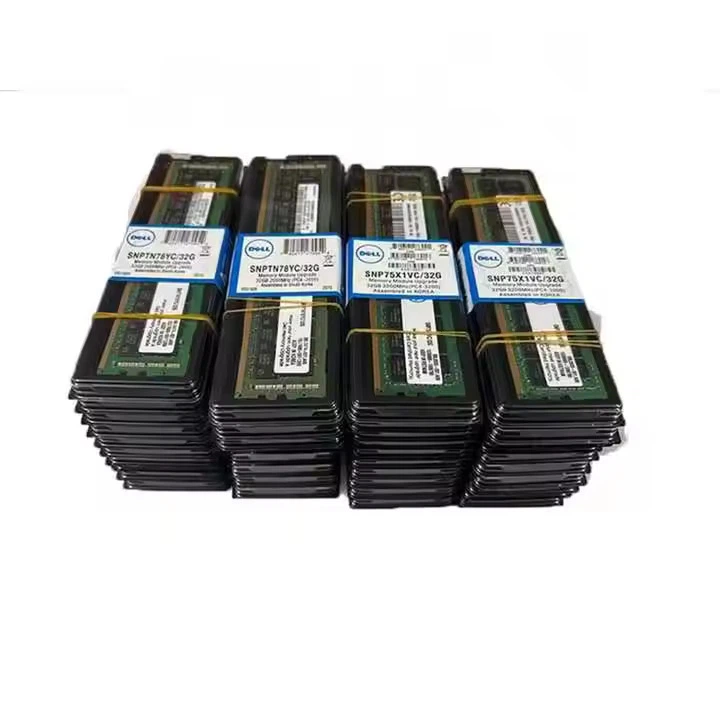
If you find that your current RAM capacity is insufficient for your needs, upgrading is a great option. We offer a wide range of Dell RAM modules, including Dell 16G RAM, Dell 32G RAM, and even 128G RAM. When upgrading, make sure to choose RAM modules that are compatible with your Dell computer's motherboard and support the same type of RAM.
Adjusting RAM Settings in BIOS
The Basic Input/Output System (BIOS) is a firmware that initializes hardware components during the boot process. You can access the BIOS settings by pressing a specific key during startup, usually F2 or Del for Dell computers. Once in the BIOS, navigate to the "Advanced" or "Memory" section, where you can adjust various RAM settings.
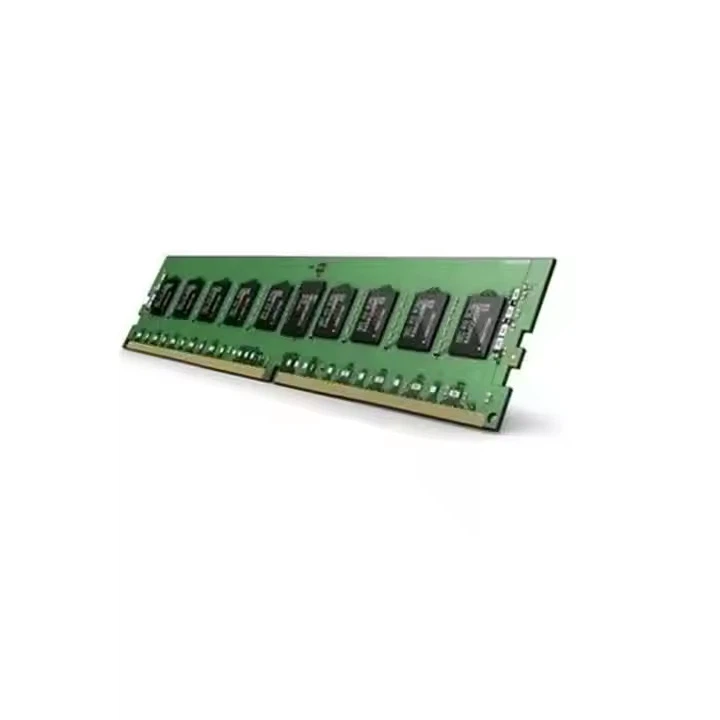
- Memory Frequency: This setting determines the speed at which your RAM operates. Higher frequencies generally result in faster data transfer rates, but not all motherboards support high-frequency RAM. Make sure to set the frequency according to the specifications of your RAM modules.
- Timings: RAM timings refer to the delay between different memory operations. Lower timings mean faster access to data, but they also require more power and may not be stable at high frequencies. You can adjust timings manually or let the BIOS set them automatically.
- XMP Profile: Extreme Memory Profile (XMP) is a technology that allows you to overclock your RAM to its maximum potential with a single click. If your RAM modules support XMP, you can enable the XMP profile in the BIOS to achieve higher performance.
Optimizing RAM Usage in Windows
In addition to adjusting BIOS settings, you can also optimize RAM usage in Windows to improve system performance. Here are some tips:
- Close Unnecessary Programs: Running too many programs simultaneously can consume a significant amount of RAM. Close any programs that you're not using to free up memory.
- Disable Startup Programs: Some programs automatically start when you boot your computer, even if you don't need them. You can disable these startup programs in the Task Manager to reduce RAM usage.
- Adjust Virtual Memory: Virtual memory is a feature that uses a portion of your hard drive as additional RAM. You can adjust the size of the virtual memory in the System Properties to optimize its usage.
Troubleshooting RAM Issues
If you encounter any issues after adjusting RAM settings, such as system crashes or blue screens of death, here are some troubleshooting steps:
- Check Compatibility: Make sure that your RAM modules are compatible with your Dell computer's motherboard and support the same type of RAM.
- Reset BIOS Settings: If you've made any changes to the BIOS settings, try resetting them to their default values to see if the issue persists.
- Test RAM Modules: You can use a RAM testing tool, such as MemTest86, to check if your RAM modules are functioning properly.
Conclusion
Adjusting RAM settings in a Dell computer can be a straightforward process if you follow the steps outlined in this blog. By understanding your computer's RAM, upgrading when necessary, adjusting BIOS settings, optimizing RAM usage in Windows, and troubleshooting any issues that arise, you can significantly enhance your computer's performance.
As a Dell RAM supplier, we're committed to providing high-quality RAM modules and expert advice to help you get the most out of your Dell computer. If you're interested in upgrading your RAM or have any questions about adjusting RAM settings, please don't hesitate to contact us for a procurement discussion. We'll be happy to assist you in finding the right RAM solution for your needs.
References
- Dell Support: https://www.dell.com/support
- Microsoft Support: https://support.microsoft.com
- MemTest86: https://www.memtest86.com