How to Check if My Computer Can Support 128G RAM
In the ever - evolving landscape of technology, the demand for high - performance computing is on the rise. One of the key components that can significantly enhance a computer's performance is Random Access Memory (RAM). As a 128G RAM supplier, I often encounter customers who are eager to upgrade their systems but are unsure if their computers can support such a large amount of RAM. In this blog post, I'll guide you through the process of determining whether your computer can handle 128G of RAM.
Understanding the Basics of RAM
Before we dive into the checking process, it's essential to understand what RAM is and how it affects your computer. RAM is a type of computer memory that temporarily stores data that your computer is actively using. The more RAM your computer has, the more data it can keep readily available, which generally leads to faster and more efficient performance. This is especially crucial for tasks such as running multiple applications simultaneously, working with large files, and gaming.
Checking the Motherboard Compatibility
The motherboard is the central hub of your computer, and it plays a crucial role in determining the maximum amount of RAM your system can support. Here are the steps to check your motherboard's RAM compatibility:
- Identify Your Motherboard Model: You can find this information in several ways. One of the easiest methods is to use system information tools. On Windows, you can press the Windows key + R, type "msinfo32" in the Run dialog box, and then press Enter. In the System Information window, look for the "System Model" or "BaseBoard Product" section to find your motherboard model. On macOS, click on the Apple menu, select "About This Mac," and then click "System Report." Navigate to "Hardware" > "Motherboard" to find the model information.
- Check the Manufacturer's Website: Once you have your motherboard model, visit the manufacturer's official website. Look for the product support or documentation section and search for your motherboard model. The specifications page should list the maximum amount of RAM the motherboard can support. Some motherboards may support up to 128G of RAM, while others may have a lower limit.
For example, if you have a Dell computer, you can visit Dell's official support website and enter your motherboard model to find the RAM compatibility information. If you're interested in upgrading to a smaller amount of RAM first, you can check out Dell 32G RAM or Dell 16G RAM options.
Checking the Operating System Compatibility
In addition to the motherboard, your operating system also has a role to play in determining the maximum amount of RAM your computer can use.
- Windows:
- 32 - bit vs. 64 - bit: A 32 - bit version of Windows can only address a maximum of 4GB of RAM. So, if you're using a 32 - bit Windows operating system, you won't be able to use 128G of RAM. To check if you're using a 32 - bit or 64 - bit version of Windows, press the Windows key + R, type "systeminfo" in the Run dialog box, and then press Enter. Look for the "System Type" section in the output. If it says "x64 - based PC," you're using a 64 - bit version of Windows, which can support larger amounts of RAM.
- Edition Limitations: Different editions of Windows have different maximum RAM support. For example, Windows 10 Home has a lower maximum RAM limit compared to Windows 10 Pro or Windows Server editions. Make sure your Windows edition can support 128G of RAM.
- macOS: macOS is a 64 - bit operating system, and most modern Macs can support a significant amount of RAM. However, the specific limit depends on the Mac model. You can check the official Apple support website for your Mac model's maximum RAM capacity.
Checking the Memory Slots
The number and type of memory slots on your motherboard also affect the amount of RAM you can install.
- Number of Slots: Count the number of available RAM slots on your motherboard. Most motherboards have 2, 4, or 8 memory slots. To install 128G of RAM, you may need to use all available slots, depending on the capacity of each RAM module. For example, if your motherboard has 4 slots and you want to install 128G of RAM, you would need to use four 32G RAM modules.
- Memory Type: Motherboards support specific types of RAM, such as DDR3, DDR4, or DDR5. Make sure the RAM you plan to install is compatible with your motherboard's memory type. You can find this information in your motherboard's specifications.
Other Considerations
There are a few other factors to consider when determining if your computer can support 128G of RAM:
- Power Supply: Installing a large amount of RAM requires additional power. Make sure your computer's power supply unit (PSU) can provide enough power to support the extra RAM. If your PSU is underpowered, it may cause stability issues or prevent the RAM from functioning properly.
- Heat Dissipation: More RAM modules generate more heat. Ensure that your computer has adequate cooling solutions, such as fans or liquid cooling systems, to keep the RAM at a safe operating temperature.
Conclusion
Checking if your computer can support 128G of RAM involves considering multiple factors, including motherboard compatibility, operating system compatibility, memory slots, power supply, and heat dissipation. By following the steps outlined in this blog post, you can determine whether your system is ready for a 128G RAM upgrade.
If you find that your computer can support 128G of RAM and you're interested in purchasing high - quality 128G RAM, we are here to help. As a reliable 128G RAM supplier, we offer a wide range of products that are compatible with various computer systems. You can explore our 128G RAM options on our website.
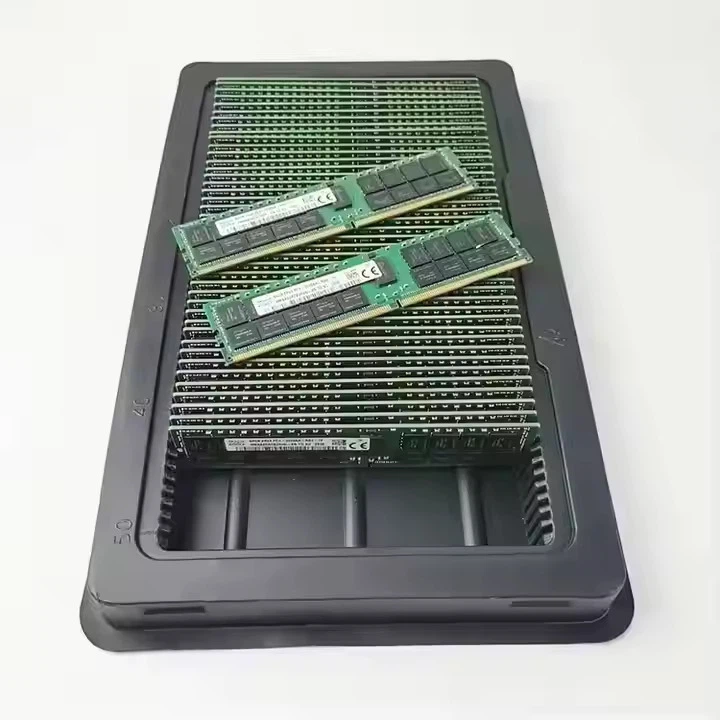
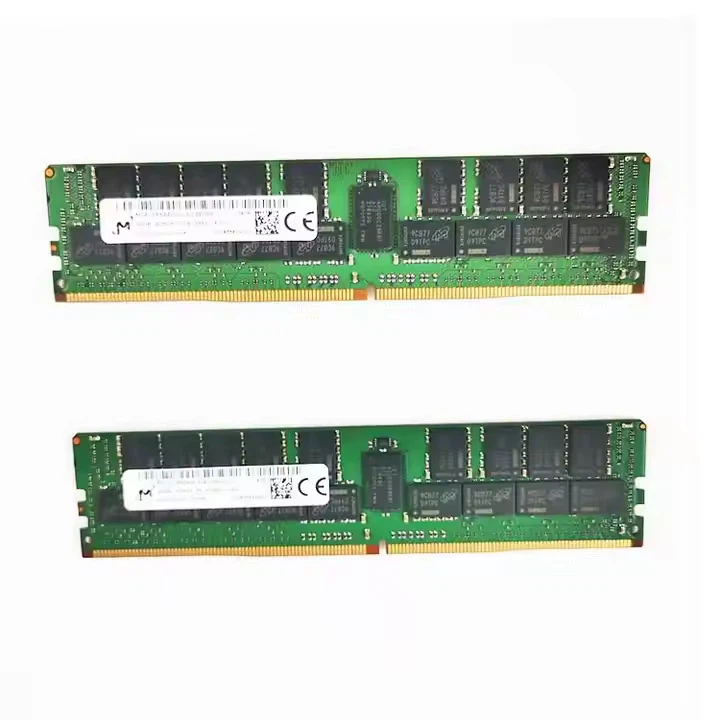
If you have any questions or need further assistance with your RAM upgrade, feel free to reach out to us. We're happy to engage in a procurement discussion to meet your specific needs.
References
- Microsoft. (n.d.). System Information Tool. Retrieved from https://docs.microsoft.com/en - us/windows/win32/sysinfo/system - information - tool
- Apple. (n.d.). About Memory in Mac. Retrieved from https://support.apple.com/en - us/HT201538
- Dell. (n.d.). Dell Support. Retrieved from https://www.dell.com/support/home/us/en/04