


Hey there! As a supplier of Dell Workstations, I often get asked about how to clean the inside of these powerful machines. Keeping the interior of your Dell Workstation clean is crucial for its performance and longevity. So, let's dive right into it and explore the best ways to do it.
Why Cleaning the Inside Matters
First off, you might be wondering why it's so important to clean the inside of your Dell Workstation. Well, over time, dust, dirt, and debris can accumulate inside the computer case. This buildup can cause a whole bunch of problems. For one, it can block the airflow, which means your components won't cool down properly. When your CPU, GPU, or other parts get too hot, they can throttle, which slows down your system. In extreme cases, overheating can even damage your hardware.
Another issue is that dust can act as a conductor of static electricity. A sudden static discharge can fry your sensitive electronic components, leading to costly repairs or replacements. So, by keeping your workstation clean, you're not only ensuring smooth operation but also protecting your investment.
Tools You'll Need
Before you start cleaning, you'll need to gather a few tools. Here's what I recommend:
- Compressed air can: This is probably the most important tool for blowing out dust from hard-to-reach places. Make sure to get one that's designed for electronics to avoid any damage.
- Soft brush: A soft-bristled brush, like a paintbrush or a keyboard cleaning brush, can be used to gently remove dust from components.
- Microfiber cloth: This is great for wiping down the surfaces of your workstation, including the case and the components.
- Anti-static wrist strap: To prevent static electricity from damaging your hardware, it's a good idea to wear an anti-static wrist strap while you're working inside the case.
Preparing Your Workstation
Now that you have your tools ready, it's time to prepare your workstation for cleaning. Here are the steps you should follow:
- Turn off your workstation: This might seem obvious, but it's important to make sure your computer is completely shut down before you start cleaning. Unplug it from the power source to avoid any electrical hazards.
- Ground yourself: Put on your anti-static wrist strap and connect it to a grounded object, like a metal table leg or a grounded electrical outlet. This will help prevent static electricity from building up on your body and damaging your components.
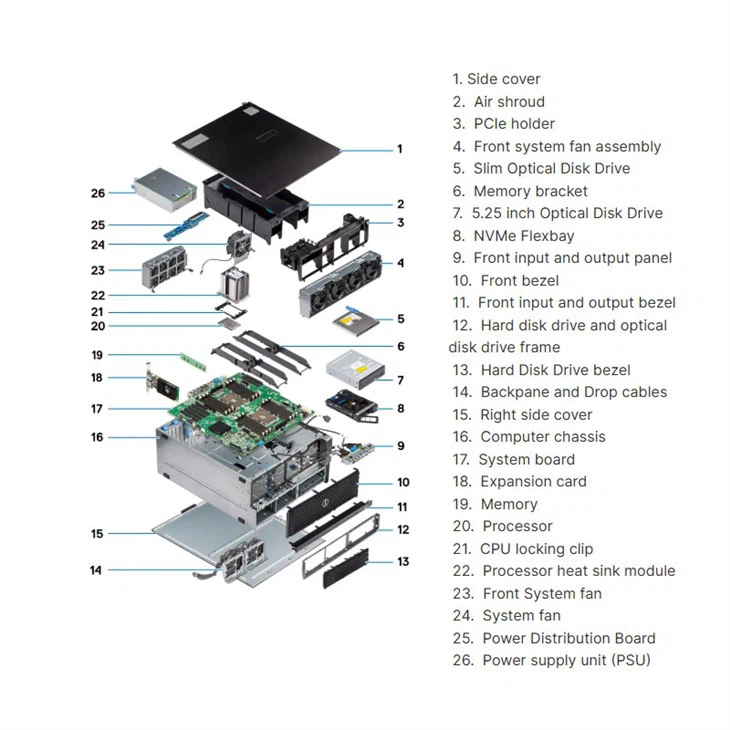
- Open the case: The process for opening the case will vary depending on the model of your Dell Workstation. For most models, you'll need to remove a few screws from the back or side of the case. Refer to your workstation's manual for specific instructions.
Cleaning the Inside
Once you have the case open, it's time to start cleaning. Here's a step-by-step guide:
- Blow out the dust: Use the compressed air can to blow out the dust from the components. Start with the fans, as they tend to collect the most dust. Hold the can upright and spray short bursts of air into the fans, making sure to get all the blades. Then, move on to the other components, such as the CPU heatsink, GPU, and motherboard. Be careful not to get too close to the components, as the force of the air can damage them.
- Brush off the dust: After you've blown out the majority of the dust, use the soft brush to gently remove any remaining dust from the components. Be especially careful around the delicate pins and connectors on the motherboard.
- Wipe down the surfaces: Use the microfiber cloth to wipe down the surfaces of the case and the components. This will help remove any remaining dust and dirt. Make sure to be gentle and avoid applying too much pressure, as you don't want to damage the components.
Cleaning Specific Models
Let's take a look at how to clean some specific models of Dell Workstations:
Dell Workstation T7920
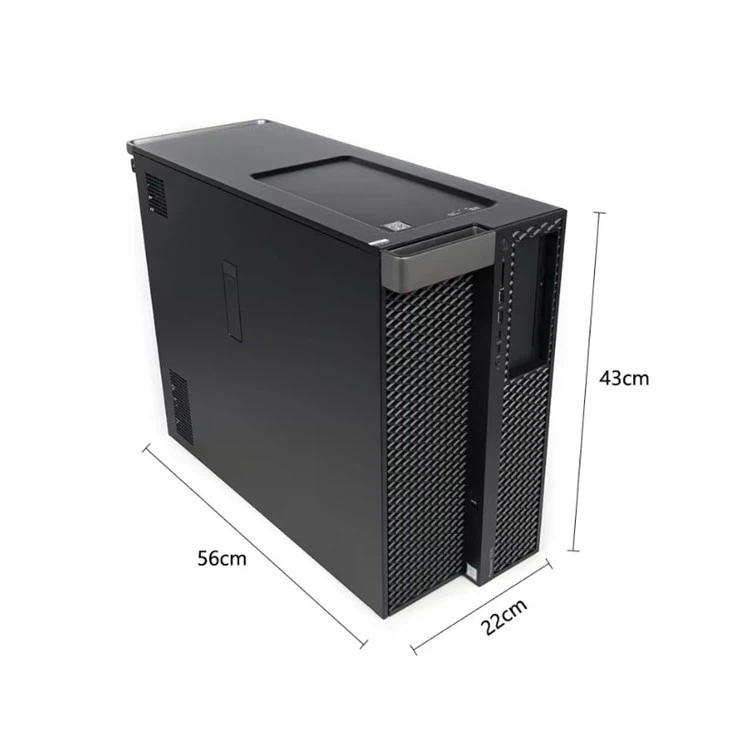
The Dell Workstation T7920 is a high-performance workstation that's designed for demanding applications. To clean the inside of this workstation, follow the general steps outlined above. However, keep in mind that the T7920 has a large and complex internal layout, so you may need to be extra careful when cleaning the components.
Workstation Dell Precision 3660 Tower
The Workstation Dell Precision 3660 Tower is a compact and powerful workstation that's perfect for small businesses and home offices. To clean the inside of this workstation, you'll need to remove the side panel by unscrewing a few screws on the back of the case. Once the panel is removed, you can follow the general cleaning steps.
3680 Tower Workstation
The 3680 Tower Workstation is another popular model from Dell. To clean the inside of this workstation, you'll need to remove the top and side panels by unscrewing a few screws. Once the panels are removed, you can access the components and follow the general cleaning steps.
Tips and Tricks
Here are a few tips and tricks to make the cleaning process easier and more effective:
- Clean regularly: To prevent dust from building up inside your workstation, it's a good idea to clean it at least once every few months. If you work in a dusty environment, you may need to clean it more often.
- Use a vacuum cleaner with a brush attachment: If you don't have a compressed air can, you can use a vacuum cleaner with a brush attachment to remove dust from the components. However, be careful not to get too close to the components, as the suction can damage them.
- Don't touch the components with your bare hands: Your hands can carry oils and static electricity, which can damage the components. Always wear an anti-static wrist strap and avoid touching the components directly.
Conclusion
Cleaning the inside of your Dell Workstation is an important part of maintaining its performance and longevity. By following the steps outlined in this blog post and using the right tools, you can keep your workstation clean and running smoothly. If you have any questions or need further assistance, don't hesitate to reach out. We're here to help you with all your Dell Workstation needs. Whether you're looking to upgrade your existing workstation or purchase a new one, we can provide you with the best solutions and support. Contact us to start a procurement discussion and find the perfect Dell Workstation for your requirements.
References
- Dell Workstation User Manuals
- Computer Hardware Maintenance Guides




