

Installing software on a Dell Workstation is a fundamental process that can significantly enhance the functionality and performance of your device. As a Dell Workstation supplier, I'm here to guide you through the steps to ensure a smooth and successful software installation.
Prerequisites
Before you start installing software on your Dell Workstation, there are a few things you need to do. First, make sure your workstation meets the system requirements of the software you want to install. You can usually find these requirements on the software's official website. For example, if you're planning to install a graphic design software, it may require a certain amount of RAM, a specific graphics card, and a minimum operating system version.
Second, back up your important data. While software installation is generally a safe process, there's always a small risk of data loss or corruption. By backing up your data, you can ensure that you don't lose any important files in case something goes wrong. You can use an external hard drive, a cloud storage service, or a backup software to create a copy of your data.
Third, check for any available updates for your Dell Workstation. Keeping your operating system and drivers up to date can help prevent compatibility issues and improve the overall performance of your device. You can use the Dell Update Utility to automatically check for and install the latest updates.
Installing Software from a CD or DVD
If you have a software CD or DVD, the installation process is relatively straightforward. Here are the steps:
- Insert the CD or DVD into your Dell Workstation's optical drive.
- If the installation wizard doesn't start automatically, open Windows Explorer and double-click on the CD or DVD drive icon.
- Follow the on-screen instructions to complete the installation. You may need to accept the software's license agreement, choose the installation location, and select any additional components you want to install.
- Once the installation is complete, you may need to restart your workstation to finalize the installation.
Installing Software from the Internet
Most software today is available for download from the internet. Here's how you can install software from the internet on your Dell Workstation:
- Open your web browser and go to the software's official website.
- Find the download link for the software and click on it. The download may take some time depending on the size of the software and your internet speed.
- Once the download is complete, locate the downloaded file in your Downloads folder or wherever you saved it.
- Double-click on the downloaded file to start the installation process. Follow the on-screen instructions to complete the installation.
- After the installation is finished, you may need to restart your workstation to finalize the installation.
Installing Software from the Microsoft Store
If you're using a Dell Workstation with Windows 10 or Windows 11, you can also install software from the Microsoft Store. Here's how:
- Open the Microsoft Store app on your Dell Workstation.
- Search for the software you want to install using the search bar at the top of the app.
- Once you find the software, click on the Get or Install button to start the installation process.
- The Microsoft Store will automatically download and install the software for you. You can track the progress of the installation in the app.
- After the installation is complete, you can launch the software from the Start menu or the Microsoft Store app.
Troubleshooting Software Installation Issues
Sometimes, you may encounter issues during the software installation process. Here are some common problems and their solutions:
- Compatibility issues: If the software you're trying to install is not compatible with your Dell Workstation's operating system or hardware, you may encounter errors during the installation. Make sure your workstation meets the system requirements of the software. If the problem persists, contact the software vendor for support.
- Installation errors: If you receive an error message during the installation process, try restarting your workstation and running the installation again. If the problem still occurs, check the software's documentation or support website for solutions.
- Missing files or dependencies: Some software may require additional files or dependencies to be installed. If you encounter an error indicating that a file or dependency is missing, try downloading and installing the missing component from the software vendor's website.
Conclusion
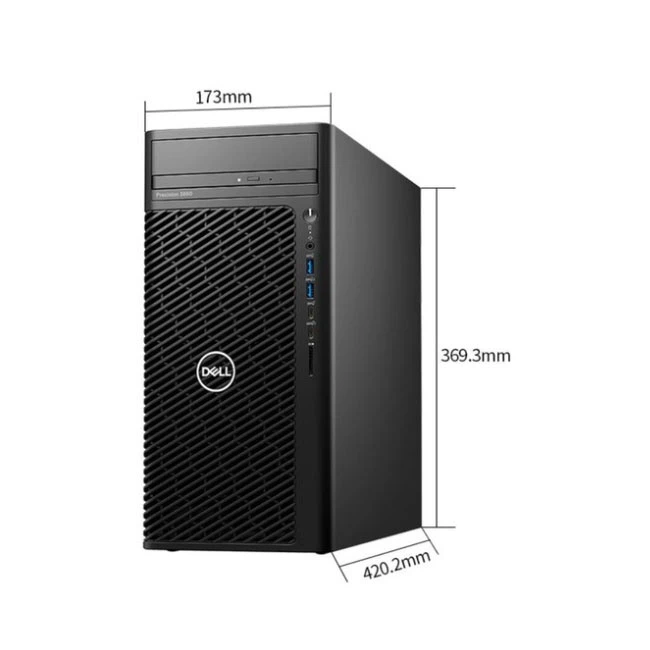
Installing software on a Dell Workstation is a relatively simple process that can be completed in a few steps. By following the guidelines outlined in this blog post, you can ensure a smooth and successful software installation. If you have any questions or need further assistance, feel free to contact us. We're a Dell Workstation supplier, and we're here to help you with all your workstation needs. Whether you're looking for a Dell T5820 Workstation, a Workstation Dell Precision 3660 Tower, or a 3680 Tower Workstation, we have the right solution for you. Contact us today to discuss your requirements and start the procurement process.
References
- Dell official website
- Software vendor documentation