


Managing the power settings of a Dell Workstation is crucial for optimizing performance, reducing energy consumption, and extending the lifespan of your hardware. As a Dell Workstation supplier, I've seen firsthand how proper power management can make a significant difference in both the user experience and the bottom line. In this blog post, I'll share some tips and tricks on how to manage the power settings of your Dell Workstation effectively.
Understanding Dell Workstation Power Modes
Dell Workstations come with several power modes that you can choose from, depending on your needs. These modes are designed to balance performance and energy efficiency, allowing you to get the most out of your workstation while minimizing power consumption.
- High Performance Mode: This mode provides maximum performance by allowing the CPU and other components to run at their full capacity. It's ideal for tasks that require a lot of processing power, such as video editing, 3D modeling, and gaming. However, it also consumes the most energy, so it's not recommended for everyday use.
- Balanced Mode: This mode strikes a balance between performance and energy efficiency. It allows the CPU and other components to adjust their performance based on the workload, reducing power consumption when the system is idle or under light load. It's a good choice for most users who need a combination of performance and energy savings.
- Power Saver Mode: This mode prioritizes energy efficiency over performance. It reduces the CPU speed and other components' power consumption to minimize energy usage. It's suitable for tasks that don't require a lot of processing power, such as web browsing, word processing, and email. However, it may result in slower performance, so it's not recommended for demanding applications.
Adjusting Power Settings in Windows
If you're using a Dell Workstation running Windows, you can easily adjust the power settings through the Power Options control panel. Here's how:
- Click on the Start button and select Control Panel.
- In the Control Panel, click on Power Options.
- Select the power plan that you want to use, such as High Performance, Balanced, or Power Saver.
- If you want to customize the power settings further, click on Change plan settings next to the selected power plan.
- On the Change settings for the plan page, you can adjust various settings, such as the display brightness, sleep time, and hard disk idle time.
- Click on Save changes to apply the new power settings.
Optimizing Power Settings for Dell Workstations
In addition to choosing the right power mode and adjusting the power settings in Windows, there are several other ways to optimize the power consumption of your Dell Workstation. Here are some tips:
- Use the Latest Drivers and BIOS: Keeping your Dell Workstation's drivers and BIOS up to date can improve its performance and energy efficiency. Dell regularly releases updates that include bug fixes, performance improvements, and power management enhancements. You can use the Dell SupportAssist tool to automatically check for and install the latest drivers and BIOS updates.
- Disable Unnecessary Hardware and Services: Disabling unnecessary hardware components and services can reduce the power consumption of your Dell Workstation. For example, if you don't use the built-in webcam or Bluetooth, you can disable them in the Device Manager. You can also disable unnecessary startup programs and services in the Task Manager to reduce the system's resource usage.
- Use a Power Management Software: There are several third-party power management software programs available that can help you optimize the power consumption of your Dell Workstation. These programs allow you to create custom power plans, monitor the system's power usage, and schedule power-saving actions. Some popular power management software programs include BatteryBar, PowerPlanSwitcher, and Energy Star Power Management.
- Upgrade to Energy-Efficient Hardware: If your Dell Workstation is several years old, upgrading to energy-efficient hardware can significantly reduce its power consumption. For example, you can replace the old hard drive with a solid-state drive (SSD), which consumes less power and provides faster performance. You can also upgrade the power supply unit (PSU) to a more energy-efficient model.
Power Management for Specific Dell Workstations
Different Dell Workstations may have different power management features and settings. Here are some specific tips for managing the power settings of popular Dell Workstations:
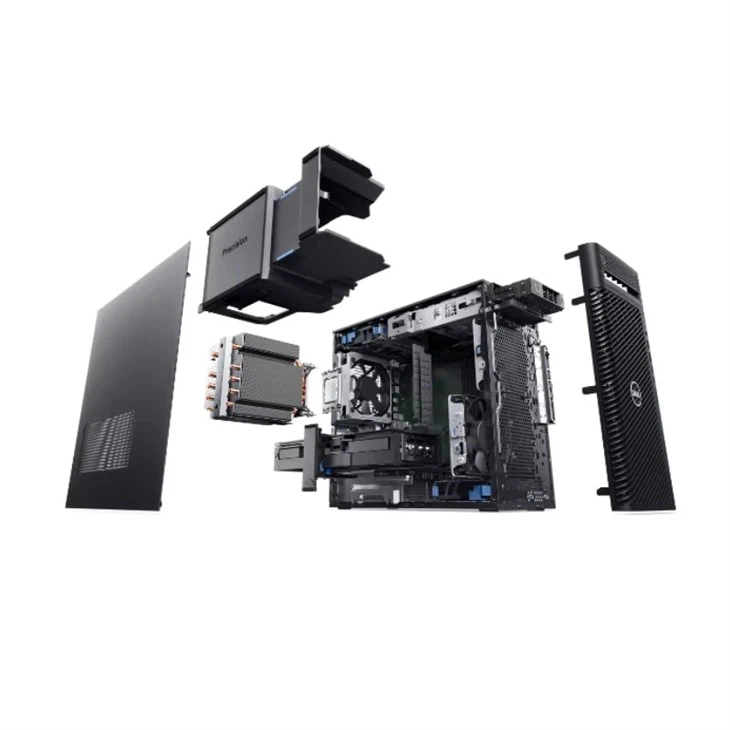
- 3680 Tower Workstation: The Dell 3680 Tower Workstation offers several power management features, including the ability to adjust the CPU power limit, enable or disable the discrete graphics card, and configure the system's sleep and hibernate settings. You can access these settings through the BIOS or the Dell Power Manager software.
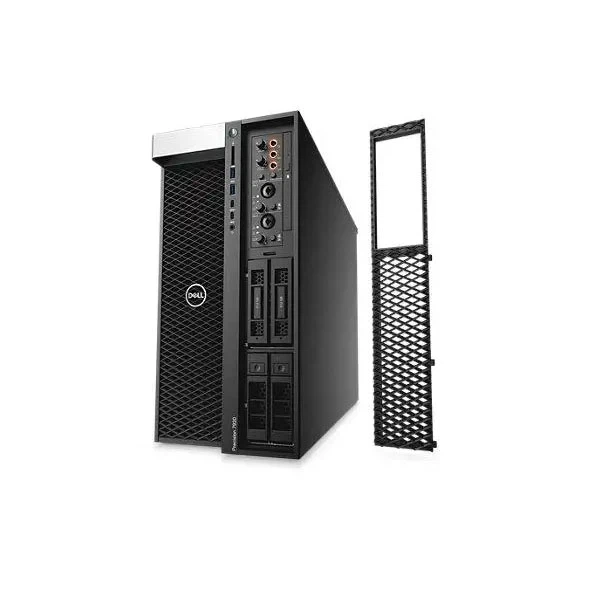
- Dell Workstation T7920: The Dell Workstation T7920 is a high-performance workstation that offers advanced power management features, such as the ability to monitor and control the power consumption of individual components, configure the system's power profile based on the workload, and enable or disable the Turbo Boost technology. You can access these settings through the BIOS or the Dell Power Manager software.
- Dell T5820 Workstation: The Dell T5820 Workstation is a compact and powerful workstation that offers several power management features, including the ability to adjust the CPU power limit, enable or disable the discrete graphics card, and configure the system's sleep and hibernate settings. You can access these settings through the BIOS or the Dell Power Manager software.
Conclusion
Managing the power settings of your Dell Workstation is an important part of optimizing its performance, reducing energy consumption, and extending its lifespan. By choosing the right power mode, adjusting the power settings in Windows, and following the tips and tricks outlined in this blog post, you can ensure that your Dell Workstation runs efficiently and effectively.
If you're interested in purchasing a Dell Workstation or need help with power management, please feel free to contact us for a consultation. We're here to help you find the right solution for your needs and budget.
References
- Dell Support. (n.d.). Power management in Dell laptops and desktops. Retrieved from https://www.dell.com/support/kbdoc/en-us/000131713/power-management-in-dell-laptops-and-desktops
- Microsoft. (n.d.). Change power plan settings in Windows. Retrieved from https://support.microsoft.com/en-us/windows/change-power-plan-settings-in-windows-89b69793-4c7d-7d94-2790-6d7e9c8866a9




