


Hey there! As a Dell workstation supplier, I've seen my fair share of issues with these machines over the years. One of the most common problems that users face is when their Dell workstation freezes. It can be super frustrating, especially when you're in the middle of an important task. But don't worry, I'm here to walk you through some steps to troubleshoot this issue.
Check the Basics
First things first, let's start with the basics. When your Dell workstation freezes, the first thing you should do is check if it's just a temporary glitch. Try pressing the Ctrl + Alt + Delete keys simultaneously. This will bring up the Task Manager on Windows. From there, you can see if any programs are not responding. If you find a program that's frozen, select it and click on "End Task" to close it.
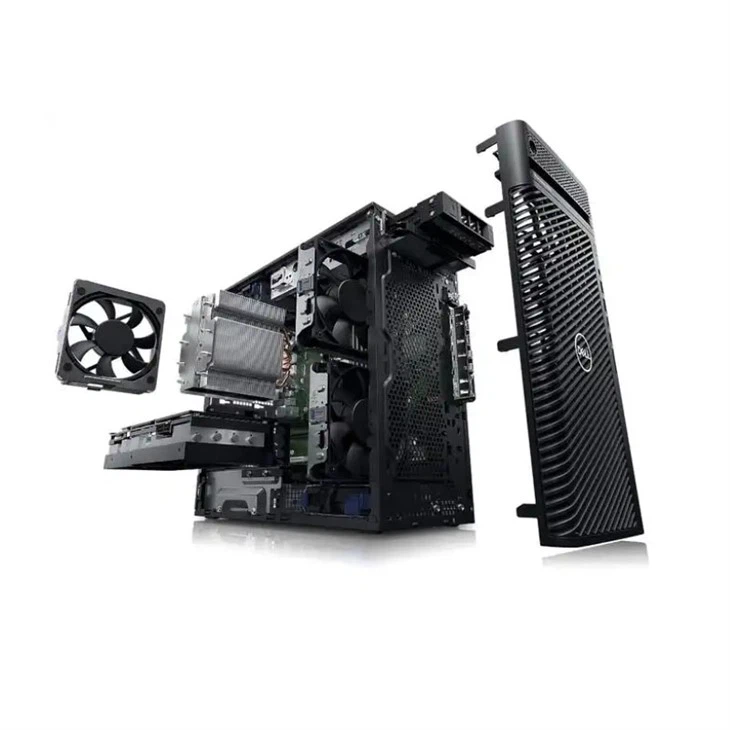
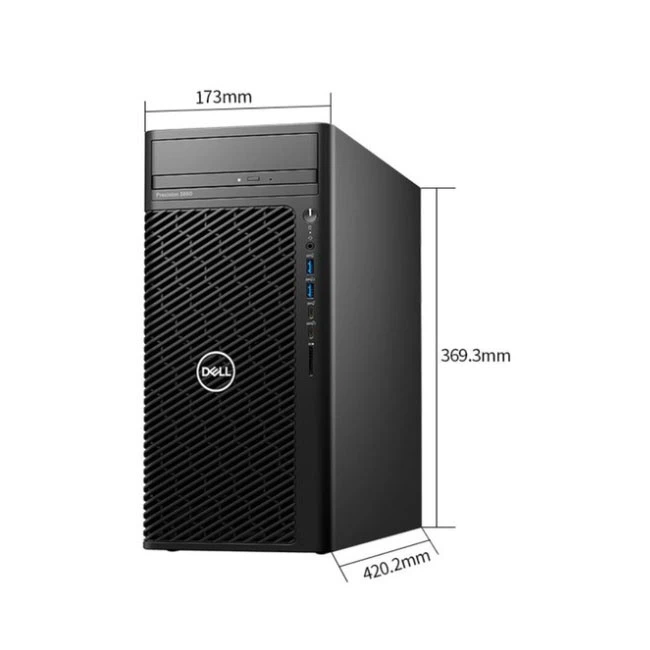
If the Task Manager itself is frozen or you can't access it, then you might need to do a hard reboot. Press and hold the power button on your workstation for about 10 seconds until it shuts down. Then, wait a few seconds and press the power button again to turn it back on. This can sometimes resolve minor software glitches that are causing the freeze.
Check for Overheating
Overheating is another common cause of workstation freezes. When your computer gets too hot, it can cause the system to slow down or even freeze. To check if your Dell workstation is overheating, you can use the built - in temperature monitoring tools. On Windows, you can use programs like HWMonitor to check the temperature of your CPU, GPU, and other components.
If you find that your workstation is overheating, there are a few things you can do. First, make sure that the ventilation ports on your workstation are not blocked. Dust and debris can accumulate over time and block the airflow, causing the system to heat up. You can use a can of compressed air to blow out any dust from the ventilation ports.
Also, check if the fans inside your workstation are working properly. If a fan is not spinning or is making strange noises, it might need to be replaced. You can open up your workstation case (make sure to follow proper safety procedures) and visually inspect the fans.
Update Your Drivers
Outdated drivers can also cause your Dell workstation to freeze. Drivers are software that allow your operating system to communicate with hardware components such as your graphics card, network adapter, and sound card. To update your drivers, you can use the Dell SupportAssist tool. This tool can automatically detect and download the latest drivers for your workstation.
You can also visit the Dell official website and download the drivers manually. Go to the Dell support page, enter your workstation's service tag or model number, and then download the latest drivers for your specific model. For example, if you have a Dell T5820 Workstation, you can find the relevant drivers on the Dell website for that particular model.
Check for Software Conflicts
Sometimes, software conflicts can cause your workstation to freeze. This can happen when two or more programs are trying to access the same resources at the same time. To check for software conflicts, you can try starting your workstation in Safe Mode. Safe Mode loads only the essential drivers and services, which can help you determine if a third - party program is causing the issue.
To start your Dell workstation in Safe Mode on Windows 10 or 11, press the power button to turn on your computer. As soon as the Dell logo appears, press the F8 key repeatedly until the Advanced Boot Options menu appears. Then, select "Safe Mode" from the menu and press Enter.
Once your computer is in Safe Mode, check if it still freezes. If it doesn't, then the problem is likely caused by a third - party program. You can then start uninstalling programs one by one until you find the one that's causing the conflict.
Scan for Malware
Malware, such as viruses, spyware, and adware, can also cause your Dell workstation to freeze. Malware can consume system resources and interfere with the normal operation of your computer. To scan for malware, you can use a reliable antivirus program. Programs like Norton, McAfee, or Windows Defender can scan your computer for malware and remove any threats that are found.
Run a full system scan using your antivirus program. This might take some time, especially if you have a large hard drive. Once the scan is complete, follow the instructions provided by the antivirus program to remove any detected malware.
Check Your Hardware
If none of the above steps resolve the freezing issue, then there might be a hardware problem. One way to check for hardware issues is to run the built - in diagnostic tools on your Dell workstation. You can access these tools by restarting your computer and pressing the F12 key during the startup process. Then, select the "Diagnostics" option from the menu.
The diagnostic tools will run a series of tests on your hardware components, such as the hard drive, memory, and motherboard. If a hardware problem is detected, the diagnostic tools will provide an error code. You can then use this error code to find out what the problem is and how to fix it.
For example, if the diagnostic test shows that there is a problem with your hard drive, you might need to replace it. If it's a problem with the memory, you can try removing and reseating the memory modules or replacing them with new ones.
Consider the Model - Specific Issues
Different Dell workstation models might have their own unique issues. For instance, the Dell Workstation T7920 is a high - end workstation with powerful components. Sometimes, issues with its advanced graphics cards or high - speed storage devices can cause freezes. Make sure to check the Dell support forums for your specific model to see if other users are experiencing similar issues and what solutions they've found.
Similarly, the Workstation Dell Precision 3660 Tower might have its own set of quirks. The support forums and official Dell documentation for this model can be great resources to find model - specific troubleshooting steps.
Contact Us for Further Assistance
If you've tried all these troubleshooting steps and your Dell workstation still freezes, don't worry. As a Dell workstation supplier, we have a team of experts who can help you diagnose and fix the problem. Whether it's a complex hardware issue or a software problem that's hard to pinpoint, we're here to assist you.
We also offer a wide range of Dell workstations at competitive prices. If you're looking to upgrade your current workstation or purchase a new one, we can provide you with detailed information about the different models and their features. We can help you choose the right workstation that meets your specific needs, whether you're a professional in graphic design, engineering, or any other field that requires high - performance computing.
So, if you're facing issues with your Dell workstation freezing or if you're interested in purchasing a new Dell workstation, don't hesitate to contact us for a procurement discussion. We're always happy to help you find the best solutions for your computing needs.
References
- Dell official support documentation
- HWMonitor software documentation
- Windows operating system user guides




