


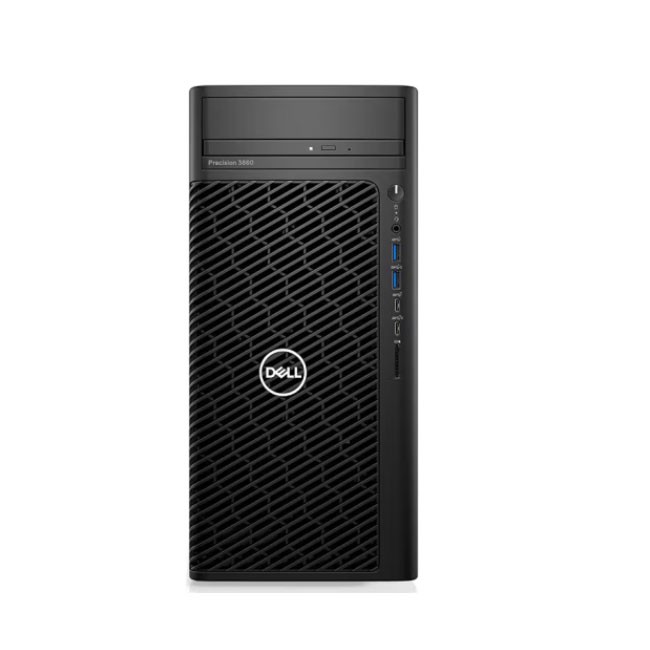
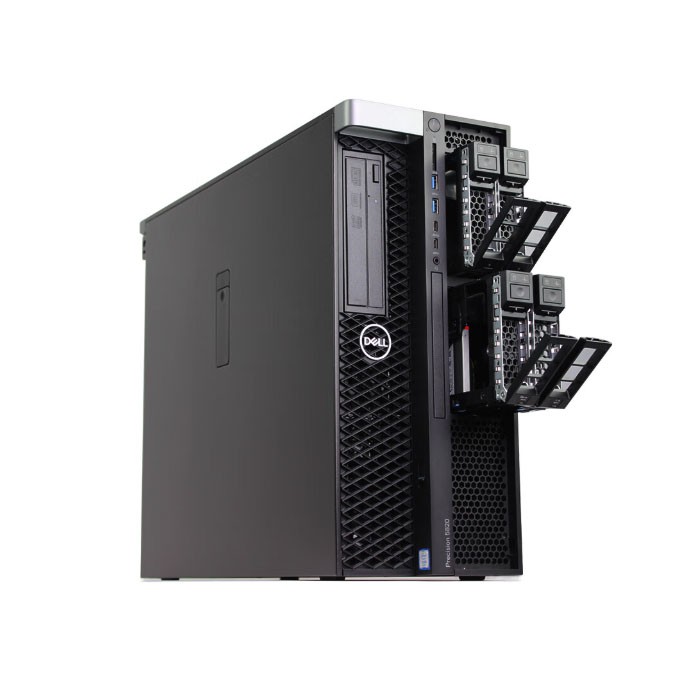
As a trusted Dell Workstation supplier, I understand the importance of having detailed knowledge about the hardware information of these powerful machines. Whether you're a professional looking to optimize your workflow or an IT manager responsible for maintaining a fleet of workstations, checking the hardware information is a crucial step. In this blog post, I'll guide you through various methods to check the hardware information of Dell Workstations, covering different models such as the 3680 Tower Workstation, Dell T5820 Workstation, and Workstation Dell Precision 3660 Tower.
Using the BIOS/UEFI Setup Utility
One of the most direct ways to access basic hardware information is through the BIOS (Basic Input/Output System) or UEFI (Unified Extensible Firmware Interface) setup utility. When you power on your Dell Workstation, you can usually enter the setup utility by pressing a specific key during the startup process. Common keys include F2, F12, or Del, depending on the model.
Once you're in the BIOS/UEFI setup utility, you can navigate through the menus to find information about the processor, memory, storage devices, and other hardware components. Look for sections labeled "System Information," "Hardware Status," or something similar. Here, you'll be able to see details such as the processor model, clock speed, installed memory capacity, and the type of storage drives connected to the system.
It's important to note that the BIOS/UEFI setup utility provides a high - level overview of the hardware. For more detailed information, you may need to use other methods.
Windows System Information
If your Dell Workstation is running the Windows operating system, you can use the built - in System Information tool. To access it, you can press the Windows key + R to open the Run dialog box, then type "msinfo32" and press Enter.
The System Information window will display a comprehensive report about your system's hardware and software configuration. You can find information about the processor, memory, motherboard, storage devices, and network adapters. The tool also provides details about the BIOS version, which can be useful for troubleshooting and determining if a BIOS update is available.
In addition to the basic information, the System Information tool can show more in - depth details such as the number of processor cores, the amount of available memory, and the type of hard drive (e.g., HDD or SSD).
Dell Command | Update
Dell Command | Update is a powerful tool provided by Dell that not only helps you keep your system up - to - date with the latest drivers and firmware but also provides detailed hardware information. You can download and install Dell Command | Update from the Dell Support website.
Once installed, open the application. It will automatically detect your Dell Workstation model and scan for available updates. During the scanning process, it also collects information about your system's hardware components. You can view this information by clicking on the "System Summary" tab. Here, you'll find details about the processor, memory, storage, graphics card, and other hardware elements.
Dell Command | Update is especially useful because it provides accurate and up - to - date information, as it is specifically designed for Dell systems. It also allows you to easily update your hardware drivers and firmware, which can improve system performance and stability.
Third - Party Hardware Monitoring Tools
There are also several third - party hardware monitoring tools available that can provide detailed information about your Dell Workstation's hardware. Tools like CPU - Z, GPU - Z, and HWMonitor are popular choices.
CPU - Z is a free utility that provides detailed information about the processor, including the model, clock speed, number of cores, and cache size. It also shows information about the motherboard, memory, and other related components. GPU - Z, as the name suggests, focuses on the graphics card. It provides details about the GPU model, memory capacity, clock speeds, and other graphics - related information.
HWMonitor is a comprehensive hardware monitoring tool that can display information about the temperature, fan speeds, and voltage levels of various hardware components. This information can be useful for monitoring the health of your system and ensuring that it is operating within safe temperature and voltage ranges.
Linux - Based Systems
If your Dell Workstation is running a Linux - based operating system, you can use commands such as "lshw" (Hardware Lister) and "dmidecode" to gather hardware information.
To use "lshw," open a terminal and type "sudo lshw". This command will provide a detailed list of all the hardware components in your system, including the processor, memory, storage, and network devices. You can also use options to filter the output and get more specific information. For example, "sudo lshw - C cpu" will show only information about the processor.
The "dmidecode" command reads the DMI (Desktop Management Interface) table, which contains information about the system's hardware configuration. By typing "sudo dmidecode" in the terminal, you can access details such as the system manufacturer, model, BIOS version, and information about the memory modules.
Importance of Checking Hardware Information
Checking the hardware information of your Dell Workstation is not just about satisfying curiosity. It has several practical benefits.
Firstly, it helps with troubleshooting. If you're experiencing performance issues or system errors, knowing the hardware configuration can help you identify potential problems. For example, if your system is running slow and you notice that the available memory is very low, you may need to upgrade the RAM.
Secondly, it's useful for system upgrades. When you're planning to add more memory, upgrade the storage drive, or install a new graphics card, you need to know the existing hardware configuration to ensure compatibility.
Finally, it's important for security and compliance. Having accurate hardware information can help you ensure that your system meets the security requirements of your organization and that all components are up - to - date with the latest security patches.
Conclusion
As a Dell Workstation supplier, I encourage you to regularly check the hardware information of your systems. Whether you're using the BIOS/UEFI setup utility, Windows System Information, Dell Command | Update, or third - party tools, there are multiple ways to access detailed information about your hardware.
If you're in the market for a new Dell Workstation or need assistance with hardware upgrades, please don't hesitate to reach out. Our team of experts is ready to help you make the best decisions for your business needs. Contact us to start a procurement discussion and find the perfect Dell Workstation solution for you.
References
- Dell Support Website: Provides official documentation and tools for Dell Workstations.
- Microsoft Documentation: Information about Windows System Information and related features.
- Third - Party Hardware Monitoring Tool Websites: CPU - Z, GPU - Z, and HWMonitor websites for tool - specific information.




